Feature update: Shades and Alignment
Published: December 23, 2025
A small update here, but a crucial one for clearly communicating assignments in the box.
Play Designer Pro now lets you add shades to indicate the alignment of defensive lineman relative to your players on the line.
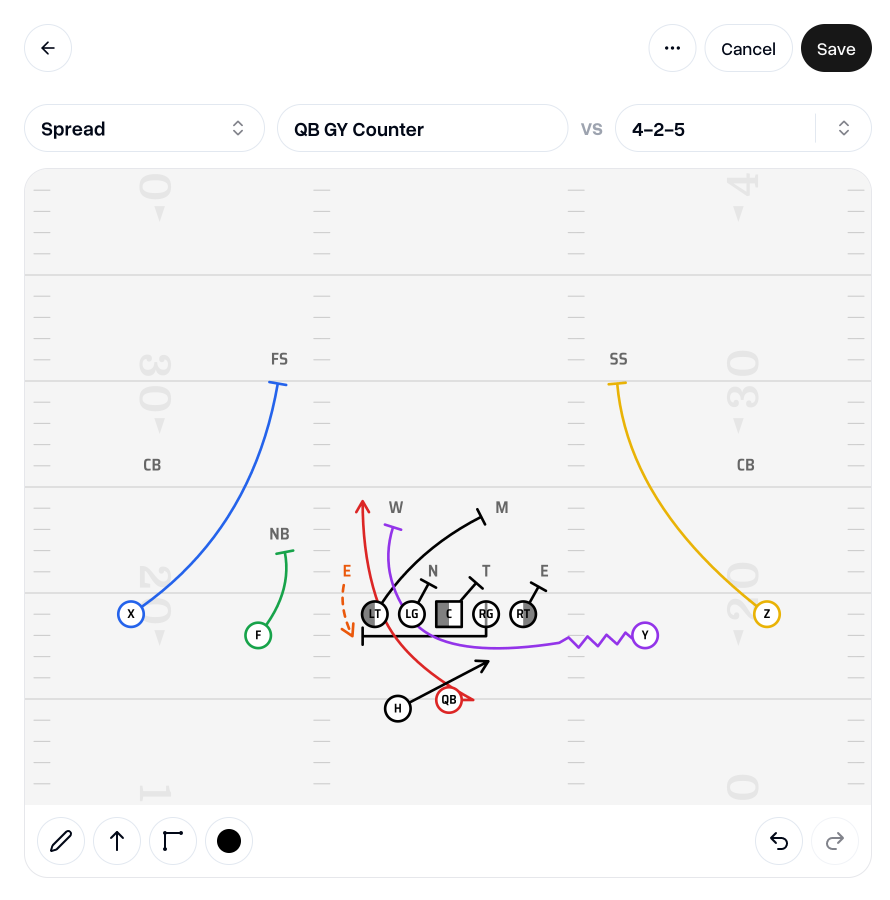
Adding shades allows you to indicate if the opposing lineman is lined up on the inside shoulder, outside shoulder, or heads up with the offensive lineman.
Shades respect the colors that you've assigned to players, so shades will appear in the same color you've already assigned.
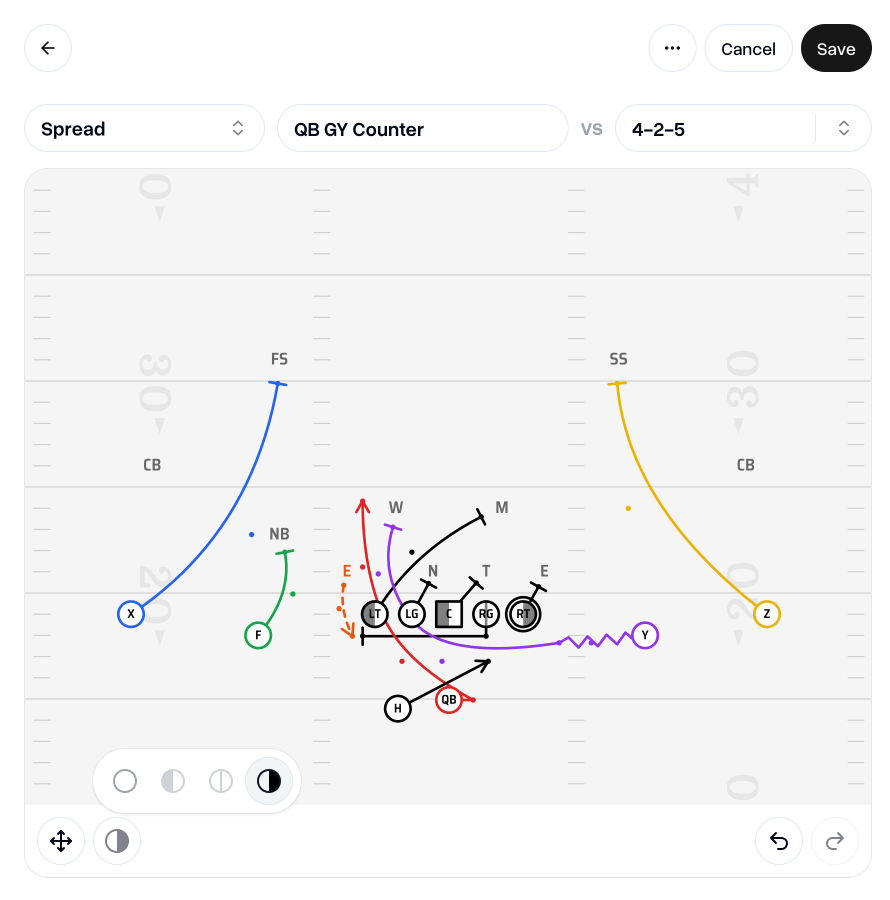
To add a shade to a player, first make sure you're in "Edit" mode, Then, select the player you'd like to add a shade to, this will highlight the player and reveal the shade options in the toolbar.
By default, players have no shade assigned to them. You can choose between the "Shade Left", "Head Up", and "Shade Right" options.
For "Shade Left" or "Shade Right", the left or right half of the player will shaded with a semi-transparent tint matching the assigned color of that player.
For "Head Up", a semi-transparent line will appear down the middle of the player.
To clear a chosen shade, just select the player and choose the "No Shade" option in the shades menu in the toolbar.
Note: Adding Shades is only available for our paid plans.
Go to my teamIf you have any feedback or questions about this update, just drop me an email at aaron@playdesignerpro.com
— Aaron, Founder of Play Designer Pro