Feature update: Route Trees
Published: August 11, 2026
Drawing the same route time and time again can get tedious, especially when you're trying to make it consistent every time. When the route is slightly different from one play to the next, your players might be left wondering why things are different.
With our new Route Trees feature, you can create route templates that you can apply to a play instead of drawing it out every time.
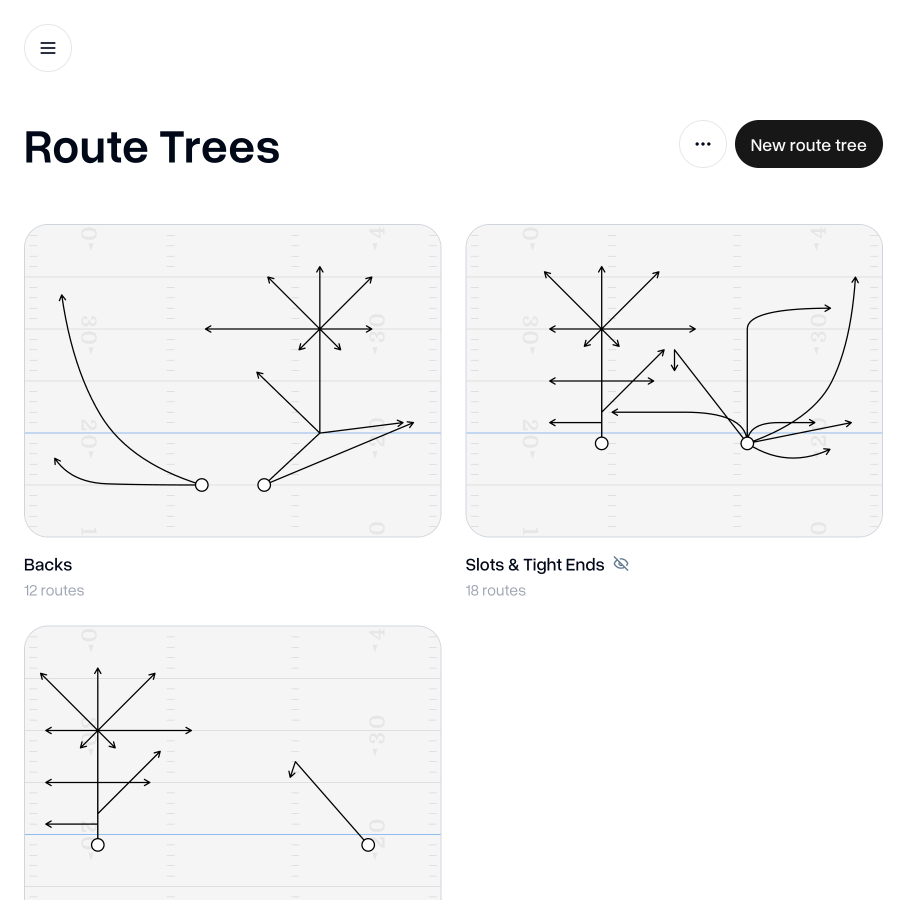
Creating your first Route Tree
We've created a couple of pre-drawn options to help you get started. The Basic tree includes the familiar 1–9 route tree, and the Advanced tree includes separate route trees for wideouts, slots & tight ends, and backs.
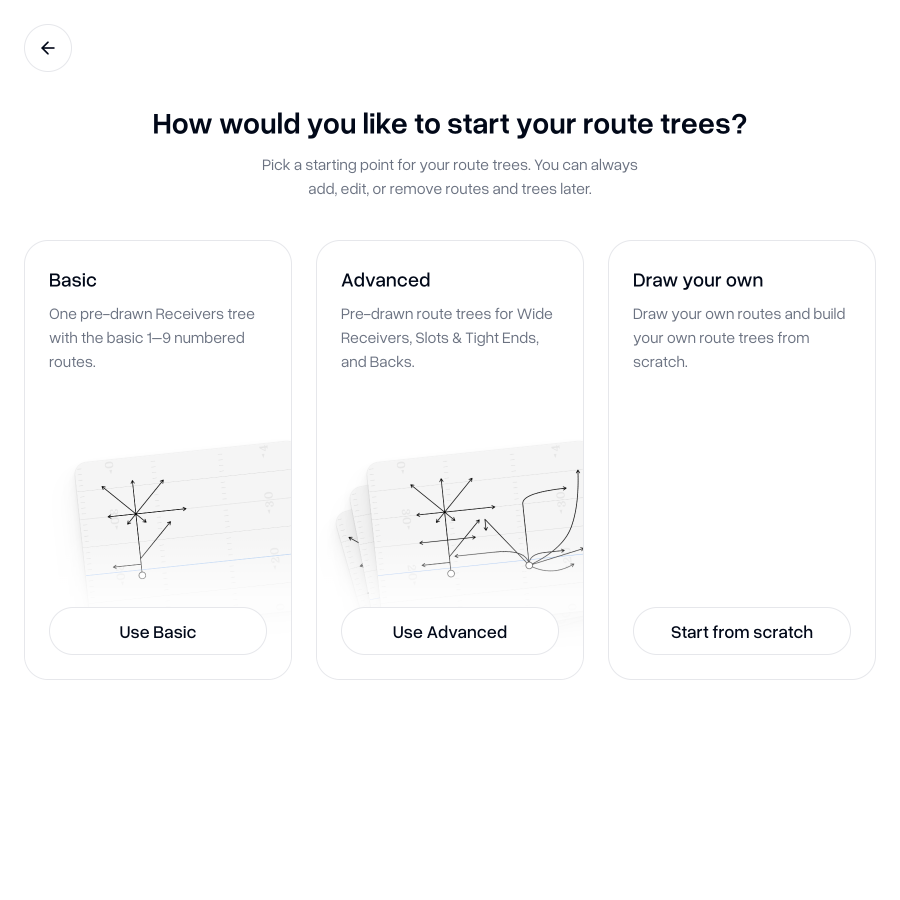
These are useful for getting started but you're free to edit, rename, delete and add to these trees so that it works for you.
If you want to draw your own, you're free to build your own route trees from scratch.
Create your own
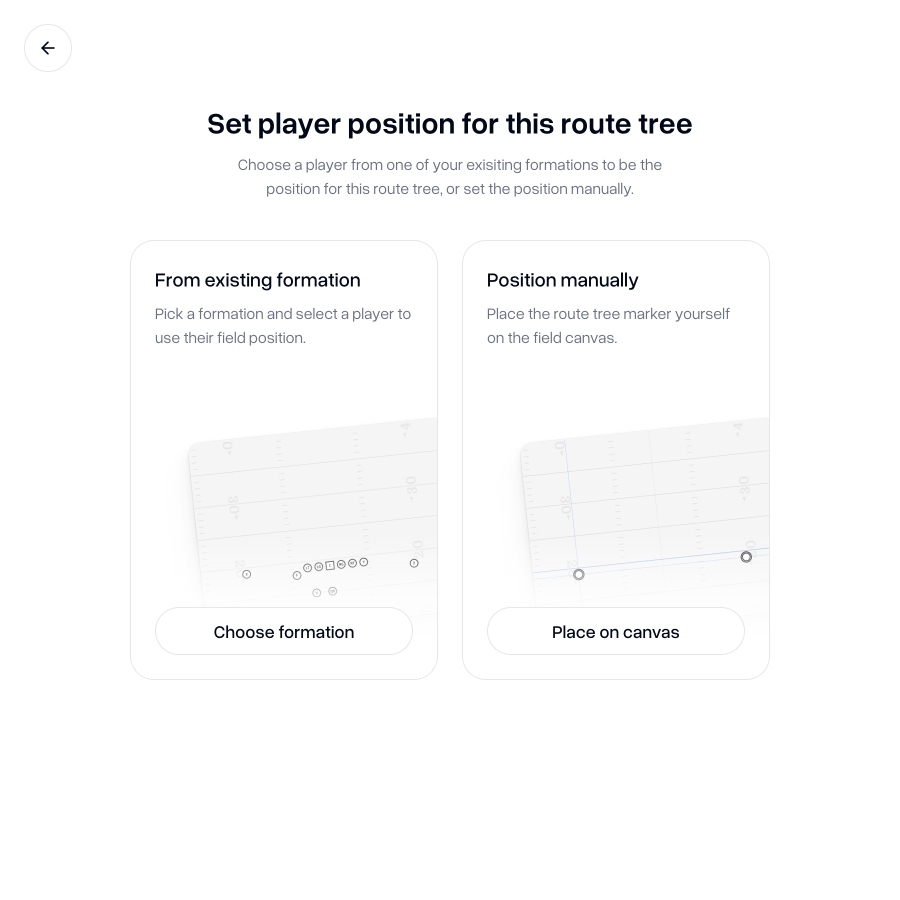
When creating a new route tree, you'll need to choose a position on the field where your route tree will be placed.
You can do this either by selecting the position of a player in one of your formations, or by dragging the player marker to your desired position on the canvas yourself.
Draw your route
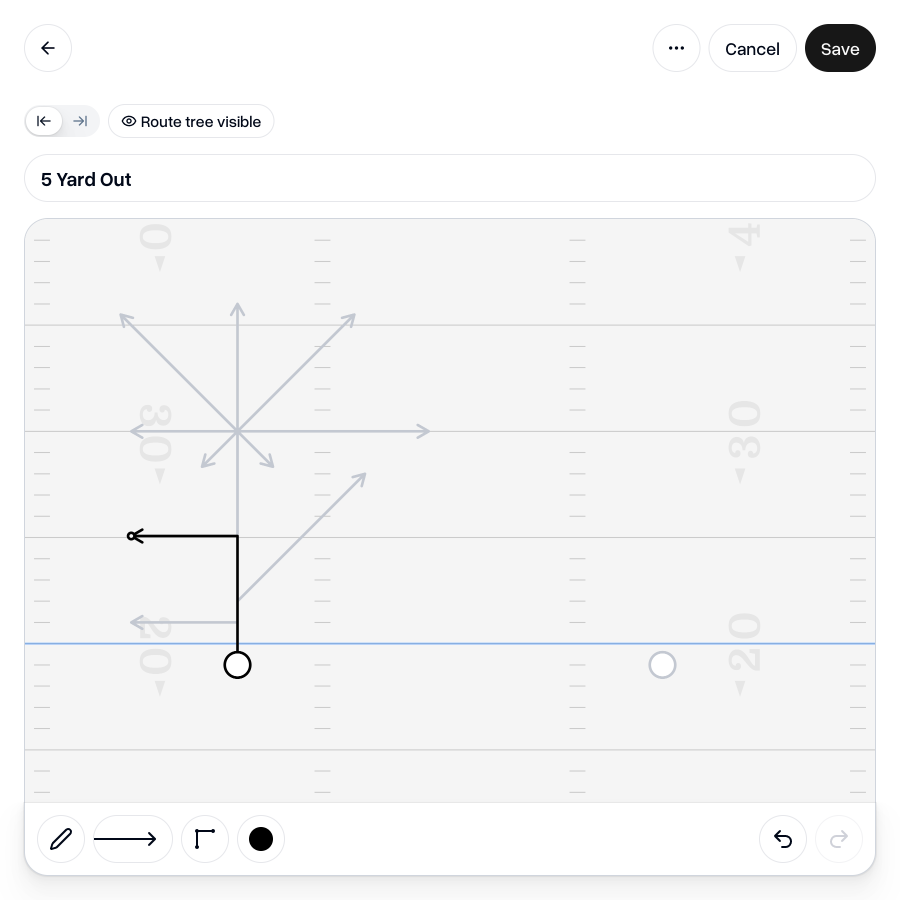
Once you've got a route tree, you can start drawing your routes. The route drawing canvas is much the same as the play drawing canvas that you're probably already familiar with.
Draw your route from the player indicator on the canvas, give it a name and you're ready to save it.
Just like a Play, you can also add a description underneath the route diagram to add clearer notes on how you want your route to be run.
If you've already got other routes in your tree, you can choose to show or hide those routes so that you can see them for reference when drawing a new route.
Once you've got routes in a tree, you can always duplicate them or move them to another tree.
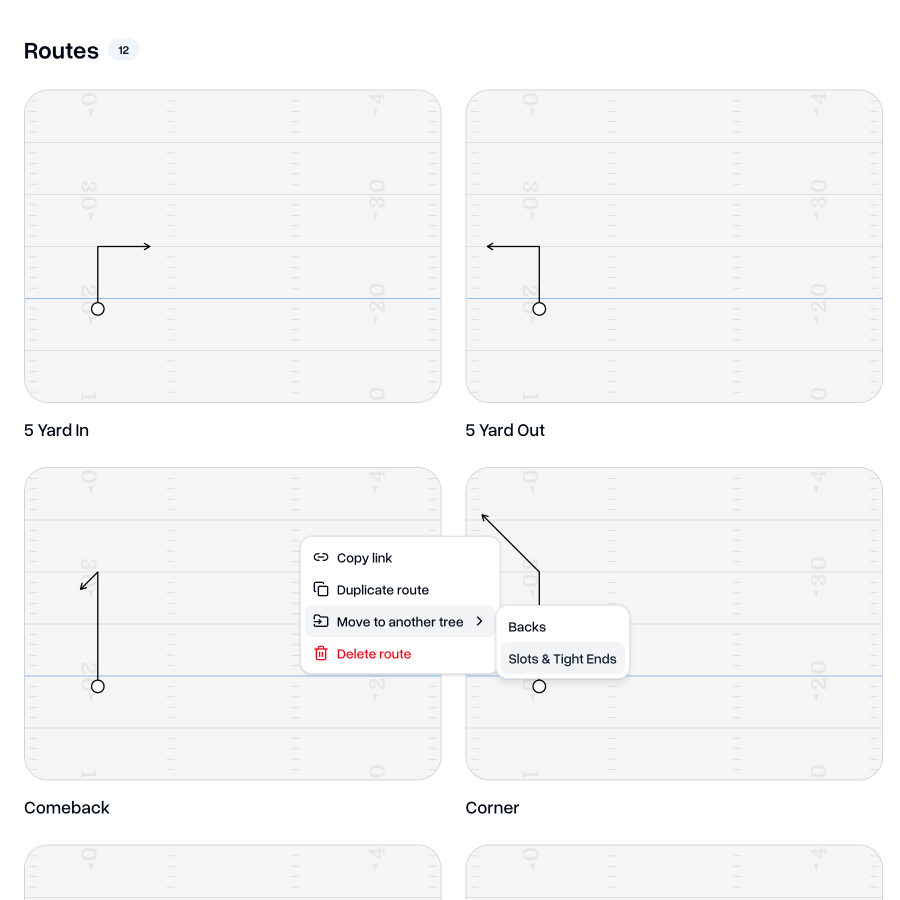
Add route to a play
Once you've got your route tree set up, you can start applying routes to your plays.
To add a route, select a player whilst in "Select/Move" mode, then click the "Add route" button in the toolbar.
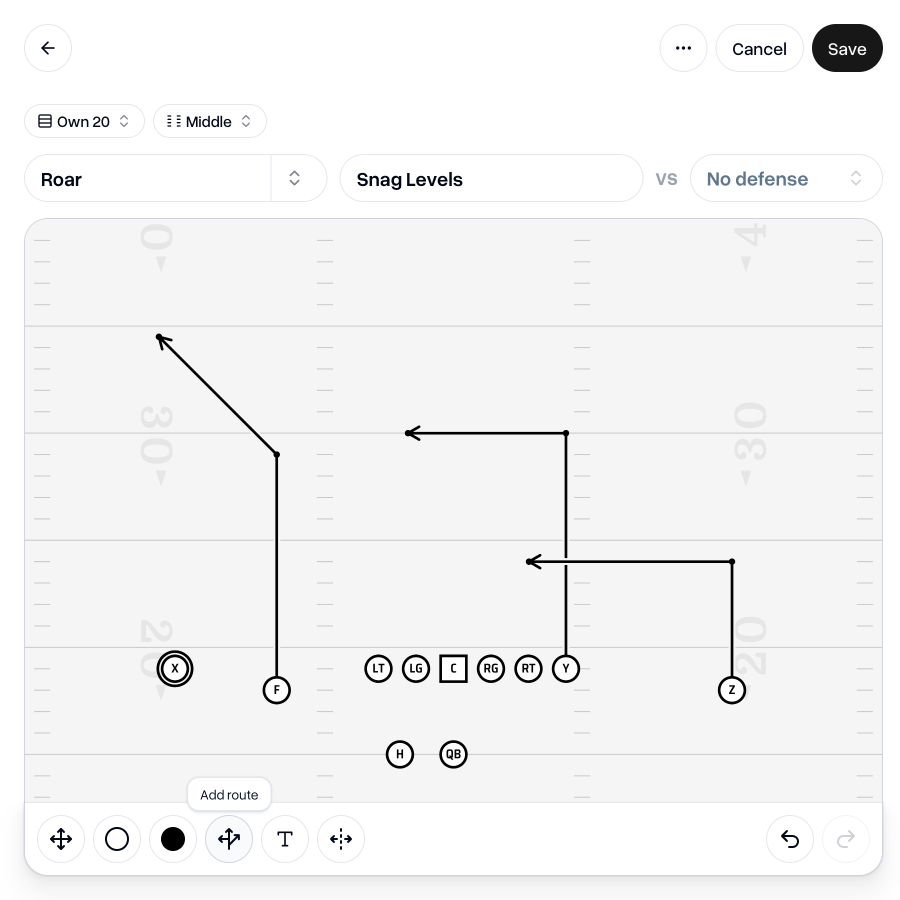
This will reveal the "Add route" sidebar, where you can see all of your templated routes to apply to the player.
You can toggle between viewingyour templated routes as diagrams or simply as a list.
When you hover over a route template, it will preview that route on the play diagram as a slightly faded version of that route, so you know what it will look like if you do choose to add it.
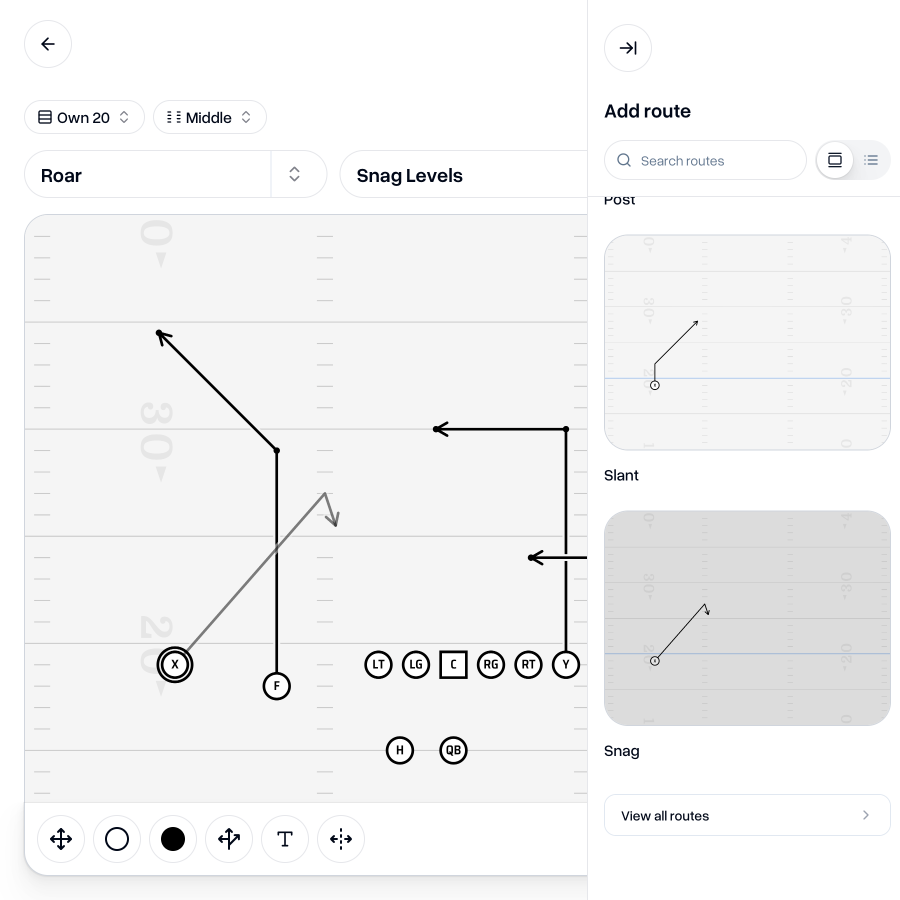
If you have multiple route trees, the routes of the tree that has been set up closest to the position of the player will be suggested first.
You can always press the "View all routes" button (underneath the list of routes) to see routes from all of your route trees.
Once you've added a route to your play, it becomes editable, just like any other line on your play diagram.
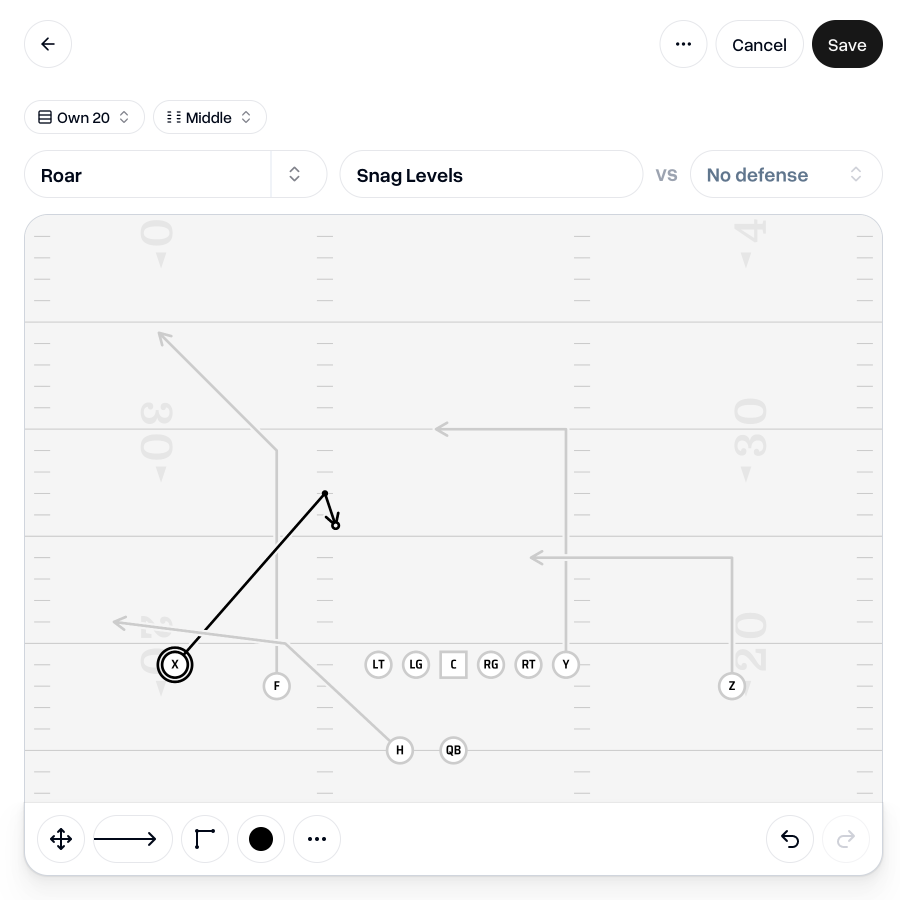
Convert existing lines to routes
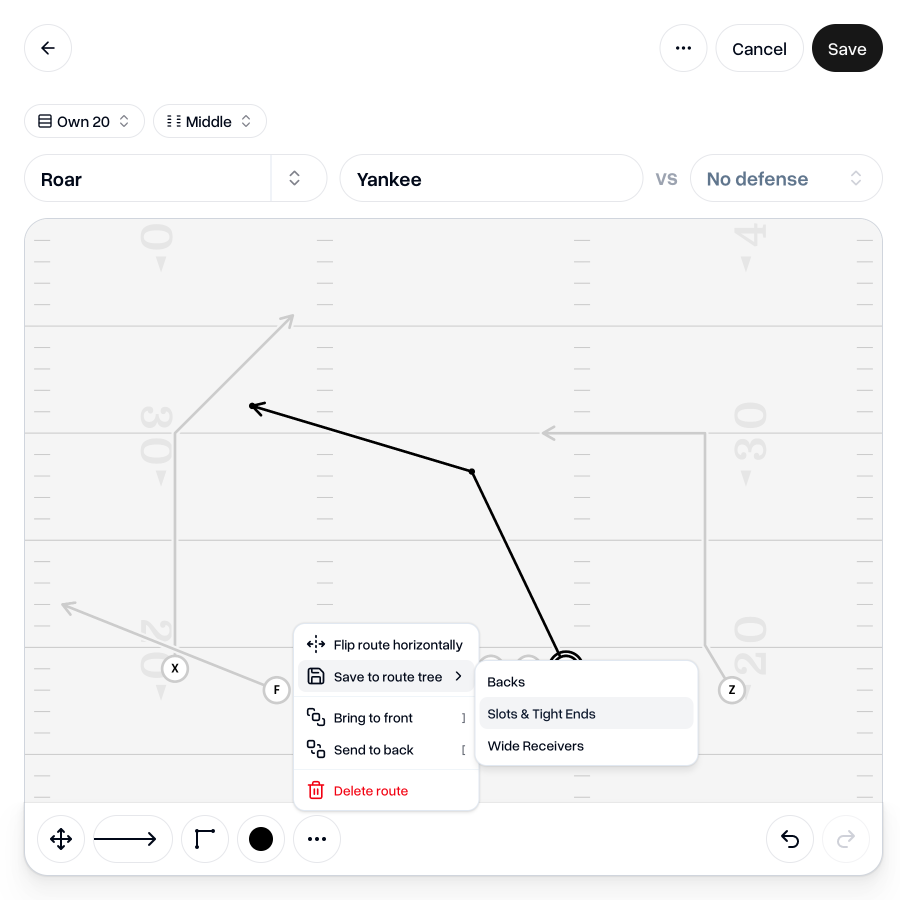
When editing a play, you can also convert any line you've drawn into a route template.
Just select that line, open the dropdown menu in the toolbar and select "Save to route tree". You can then choose which tree to save it to and what name you'd like to give that route.
Players can take quizzes
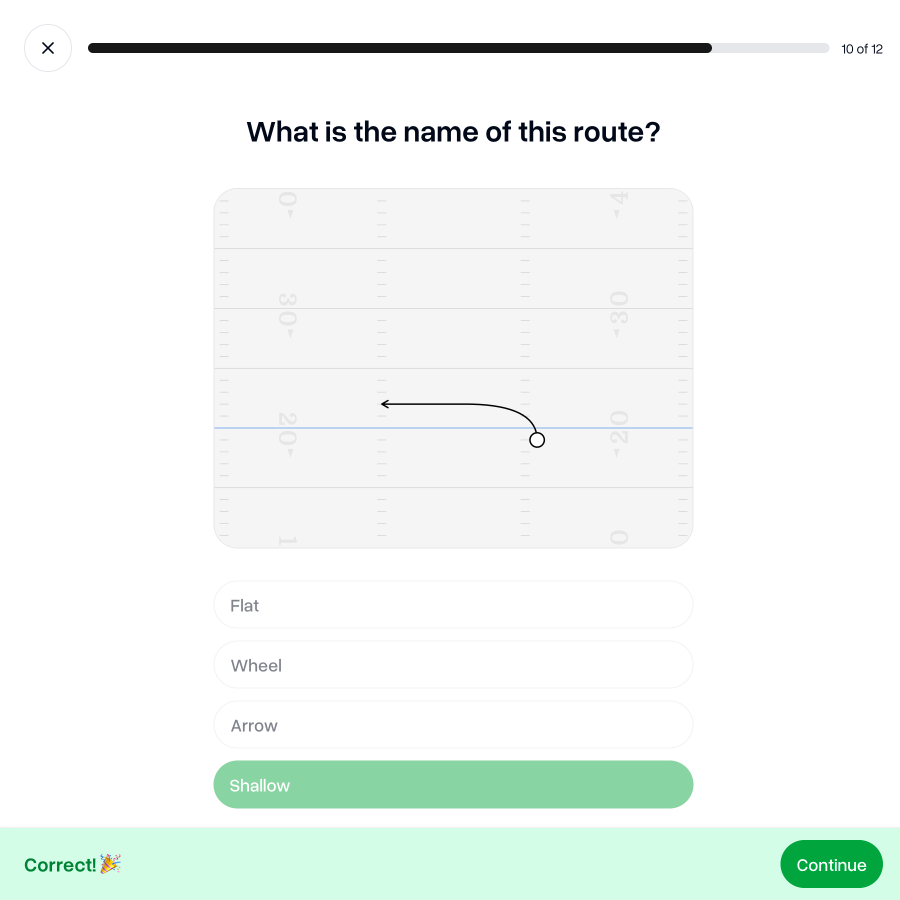
To help your players learn your route trees, we also auto-generate quizzes in the Learn tab. Just like plays, formations, and motions, they'll be asked a range of multiple choice and text input questions to familiarize them with your terminology.
You'll also be able to see a breakdown of their quiz performance in the Performance tab.
Control visibility of route trees for players
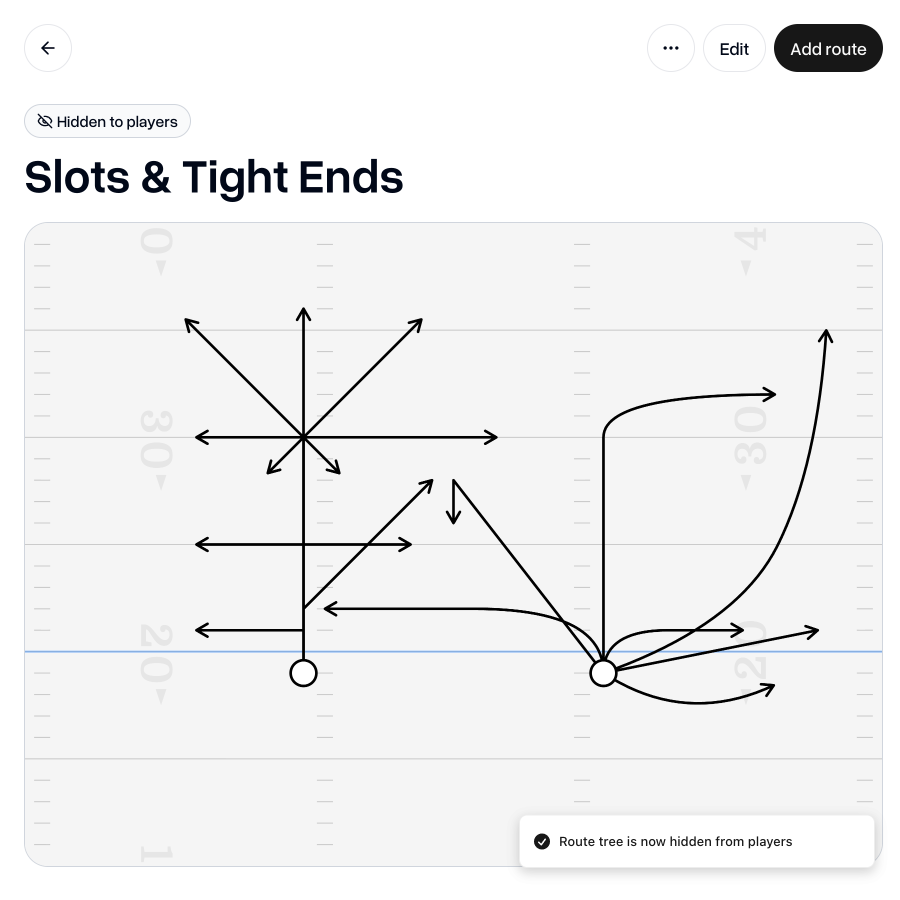
If you just want a route tree set up to make it easier for you to draw plays and you'd rather players didn't see your route trees, you can also toggle a setting which makes the route tree and its quizzes hidden for players.
 Create a Route Tree
As always, if you have any feedback, questions or ideas for improvements, don't hesitate to reach out at aaron@playdesignerpro.com or via the live chat on the site.
— Aaron, Founder of Play Designer Pro