Release notes: Choose quiz question type, manage positions in disconnected formations and more
Published: April 14, 2026
Choose quiz question types
A common request from coaches is to be able to limit the types of questions that their players get in our auto-generated quizzes—usually to only show multiple-choice questions.
Now you can do just that.
At the bottom of your team’s settings, you can now choose which question types you’d like to include on your team’s quizzes.
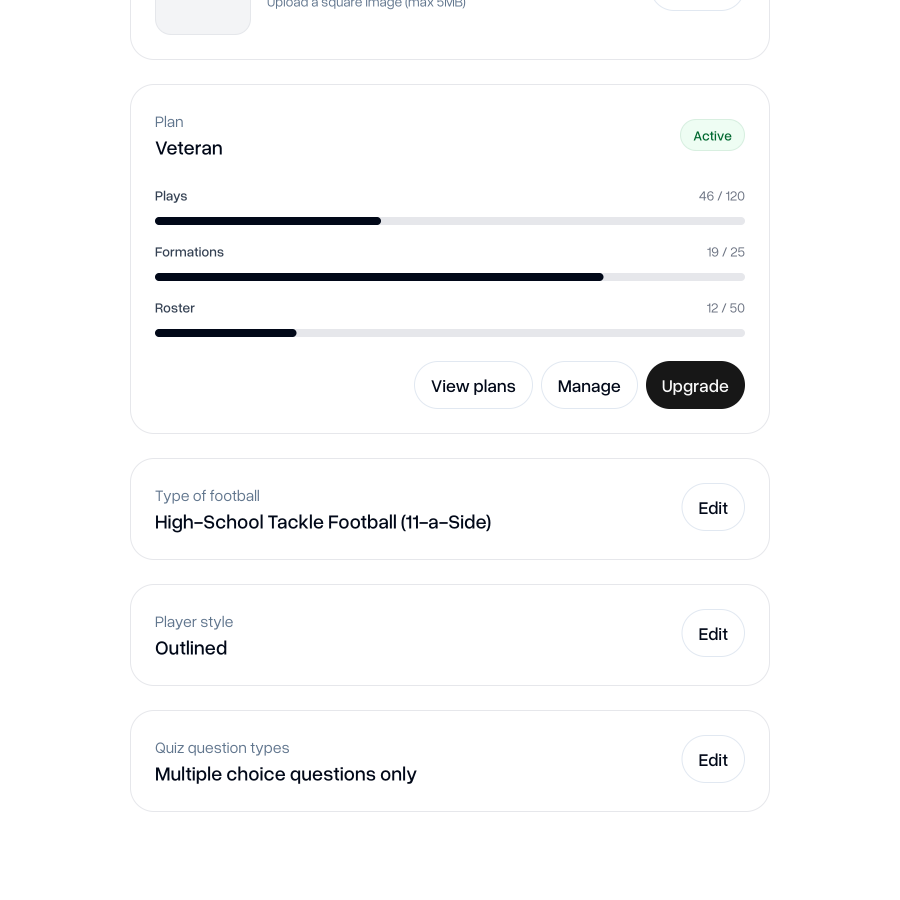
You can choose to enable all multiple-choice, or all typing questions, at once. Or you can choose exactly which question types to enable, which could be a mix of multiple choice and typing questions.
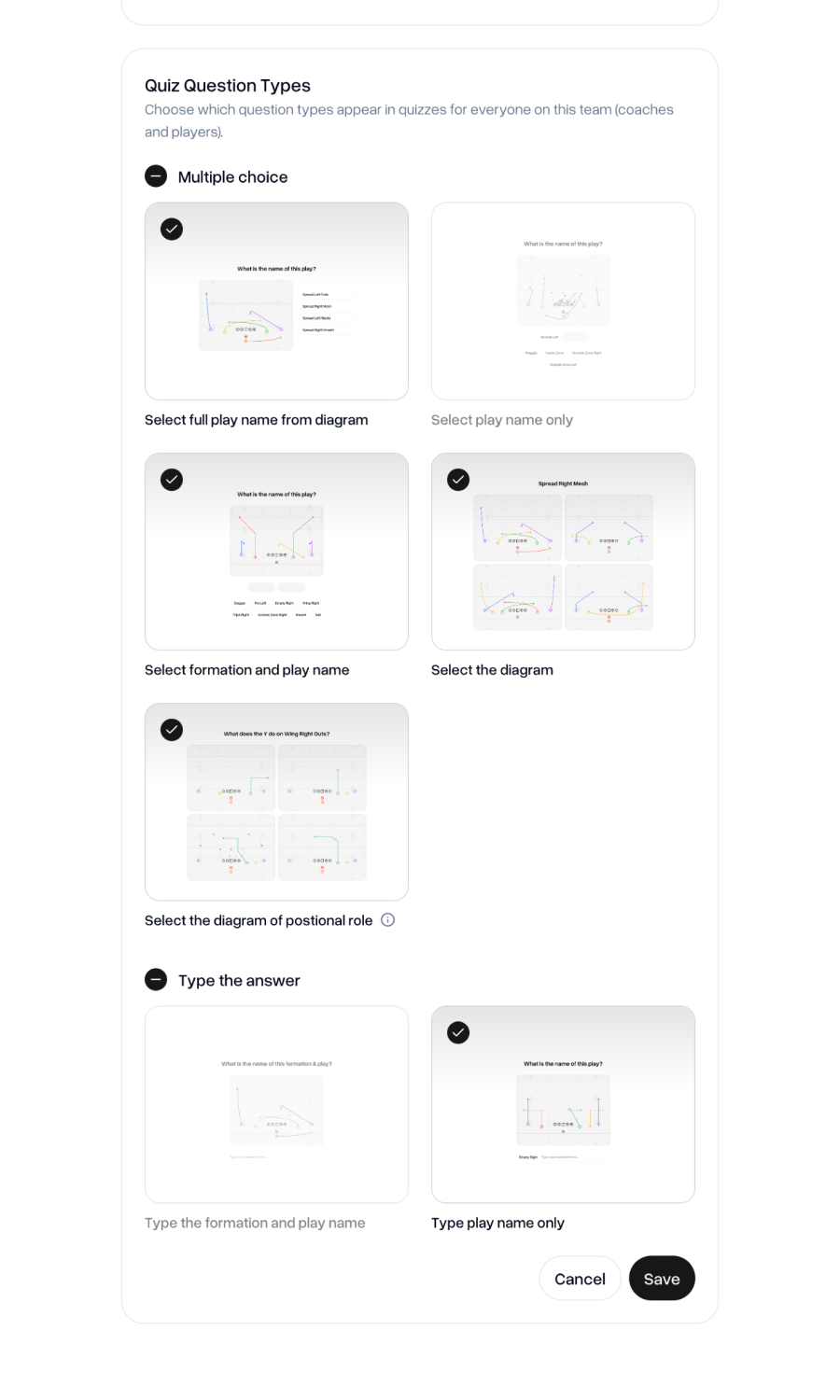
Don’t like one particular type of question? You can simply turn that one off. It really is up to you to control.
Editing positions in disconnected formations
For a while now, we’ve had the ability to make changes to the label and color of positions across all formations and the plays that use them.
But this excluded the ability to control the label and color of positions in plays using disconnected formations, meaning that you still had to go into each play and edit every player individually.
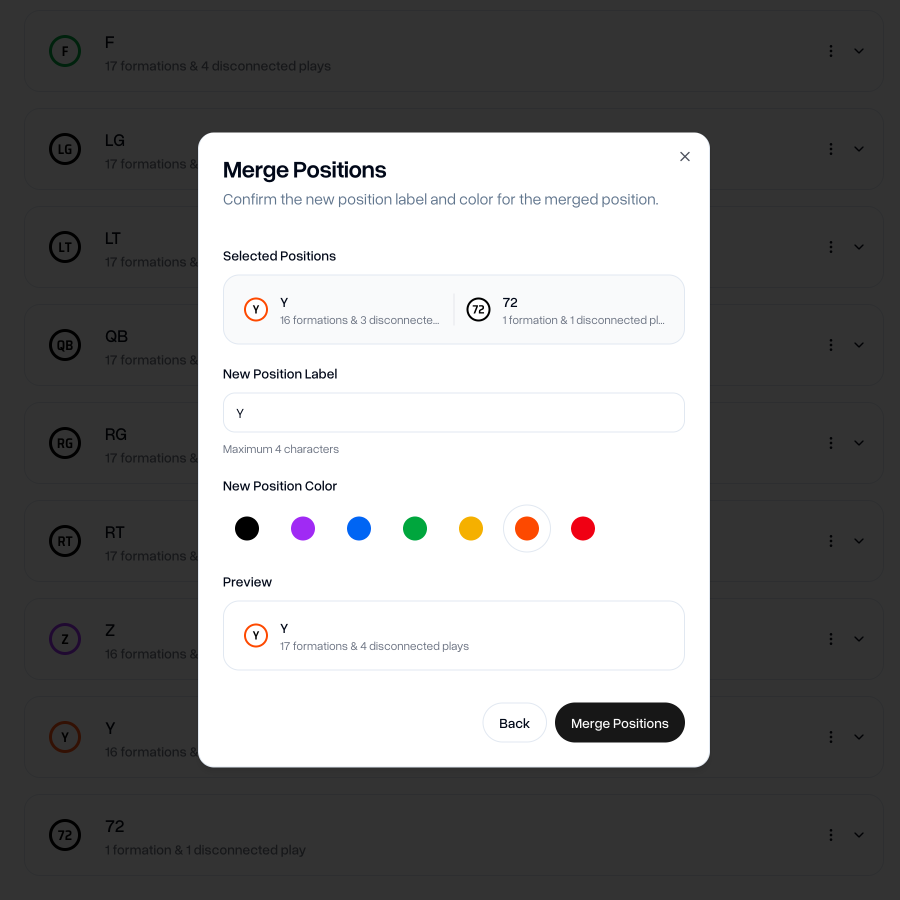
Now you can handle this all from the Positions tab. The edit and merge features have been updated so that you can make changes across all of them at the same time.
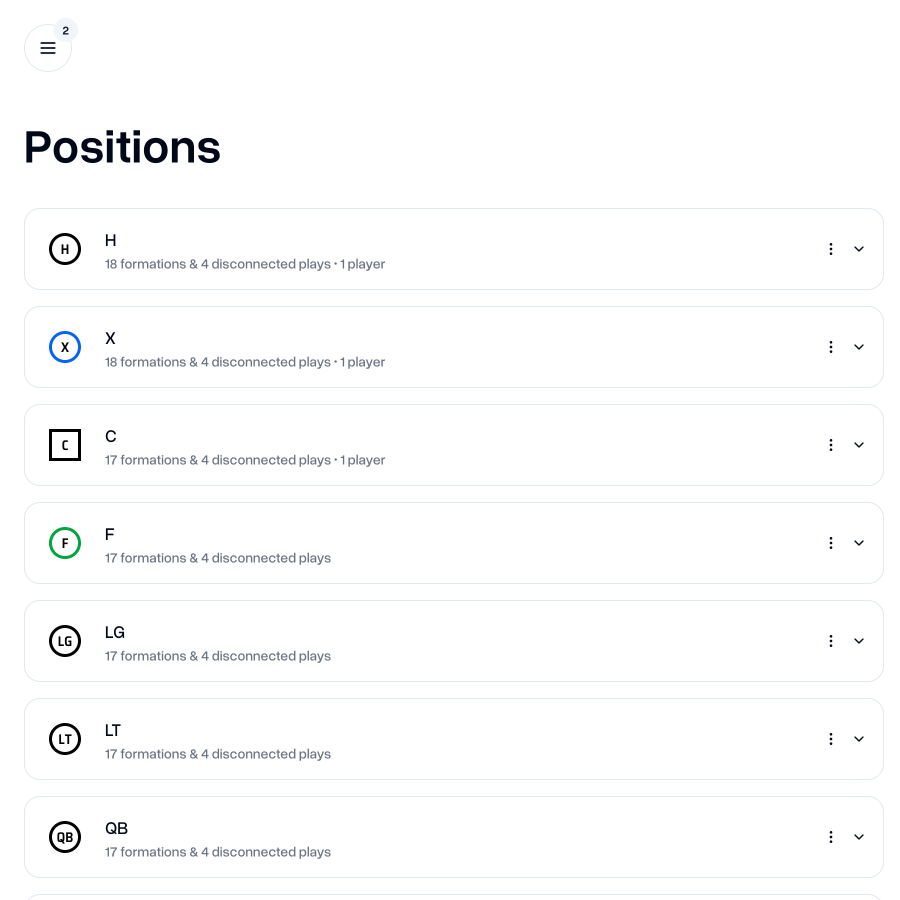
The edit and merge features have been updated so that you can make changes across all of them at the same time.
Disconnected formations quality of life improvements
When working with disconnected formations, we’ve added a couple of abilities which you normally benefit from when creating formation templates.
You can now flip player position horizontally, which greatly helps with ensuring symmetry in how players line up.
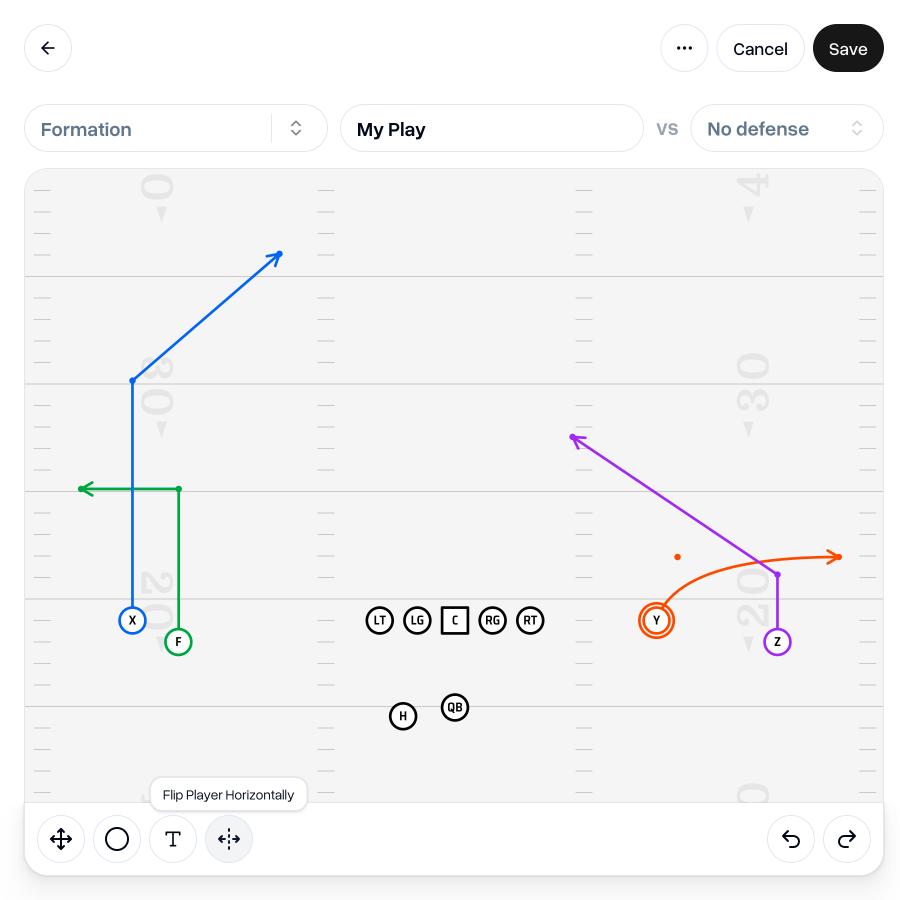
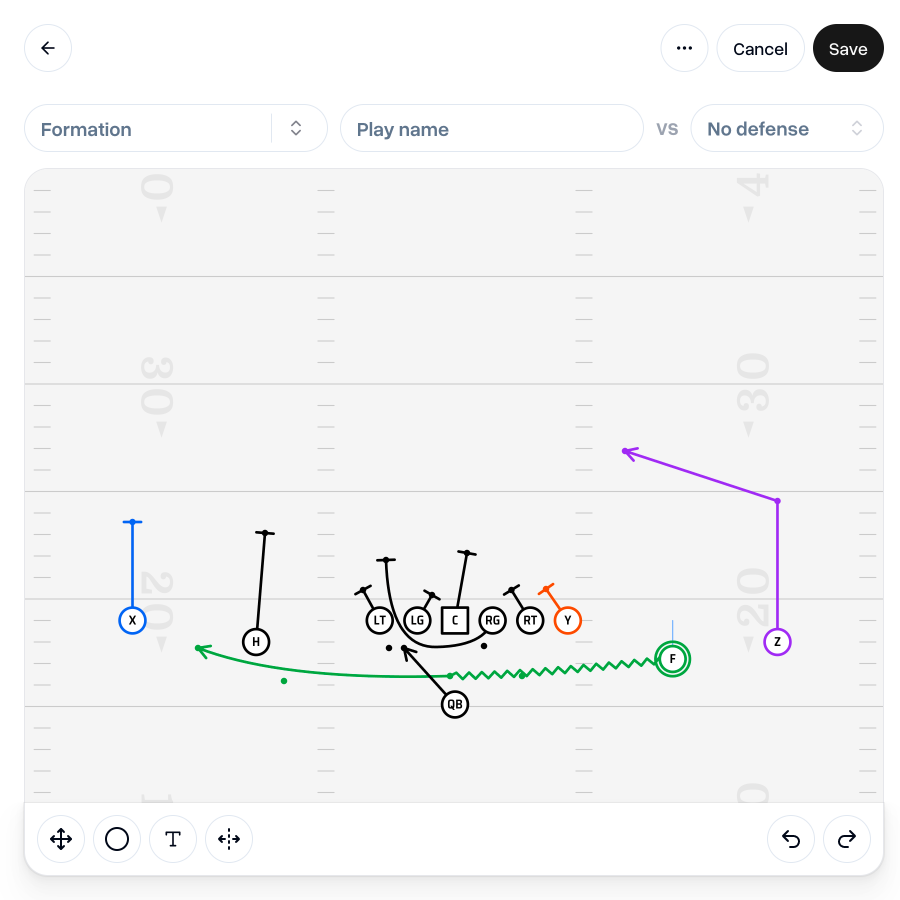
We’ve also made it easier to position players directly between two other players, just like when creating a formation template. When you’re moving a player and it’s almost equidistant between two other players, it will snap into position and show a small guideline to indicate it’s in the middle.
Upcoming changes
Some of you may have noticed the new Printouts tab, where you can currently create wrist coach printouts with more control than before.
We’re actively working to improve this, so any feedback you have would be welcome. More on this in our next update.
Go to my teamAs always, I'm keen to hear your thoughts on this update. If you have any feedback, questions or ideas for improvements, don't hesitate to reach out at aaron@playdesignerpro.com or via the live chat on the site.
— Aaron, Founder of Play Designer Pro