Feature update: Printouts tab & List printouts
Published: May 6, 2026
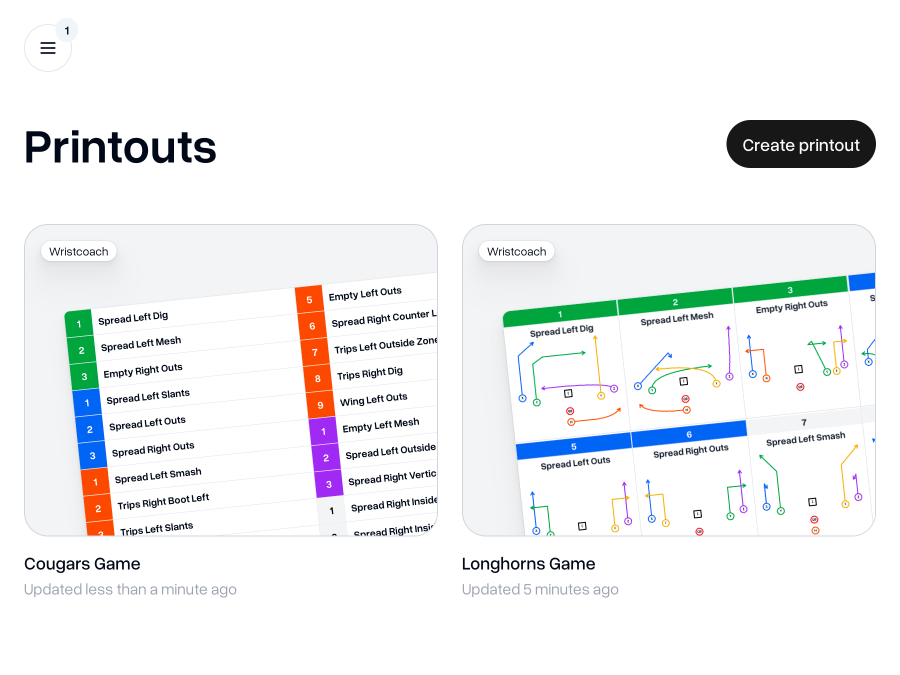
Printouts tab & Diagram layout
Where you have previously been able to download an install as a wristcoach printouts with diagrams of plays, you didn't have much control over a bunch of things like the font size, window size, the scale and position of the diagrams, and the numbers and colors above the play.
Well the new Printouts tab gives you that level of control that you've been missing.
You can choose to create wristcoach printouts either from an existing install or you can select the plays you'd like to include.
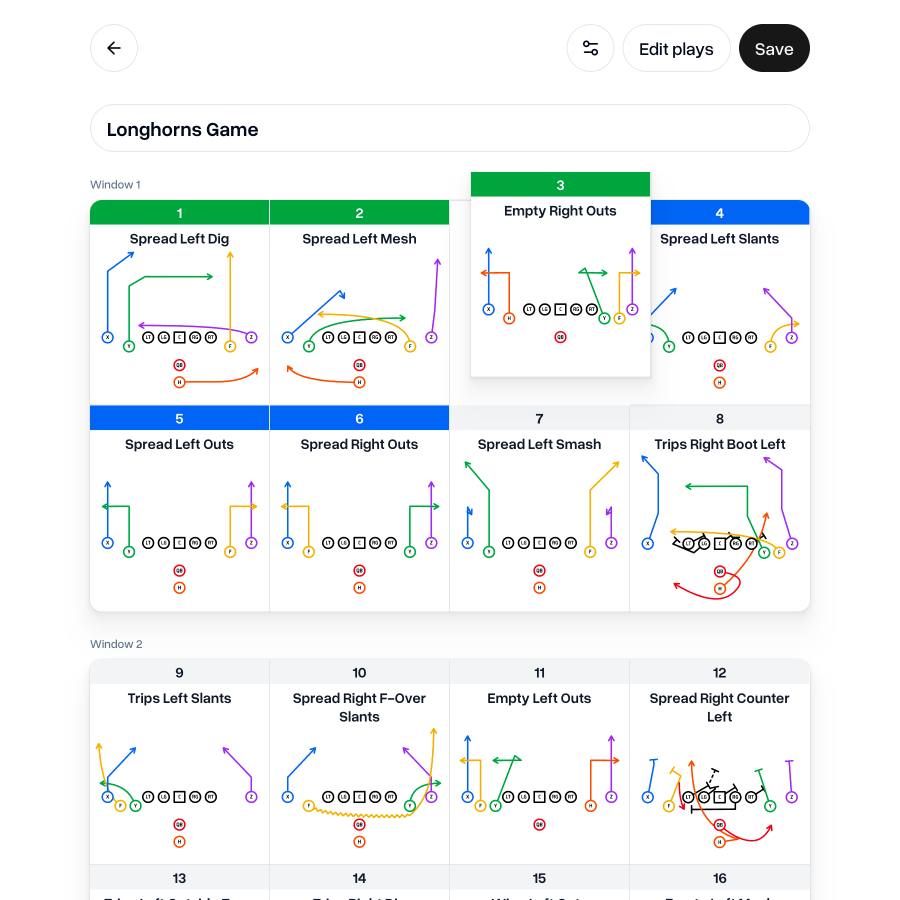
Once you've added a few plays, you're able to drag and drop them to reorder them into the layout that you'd like.
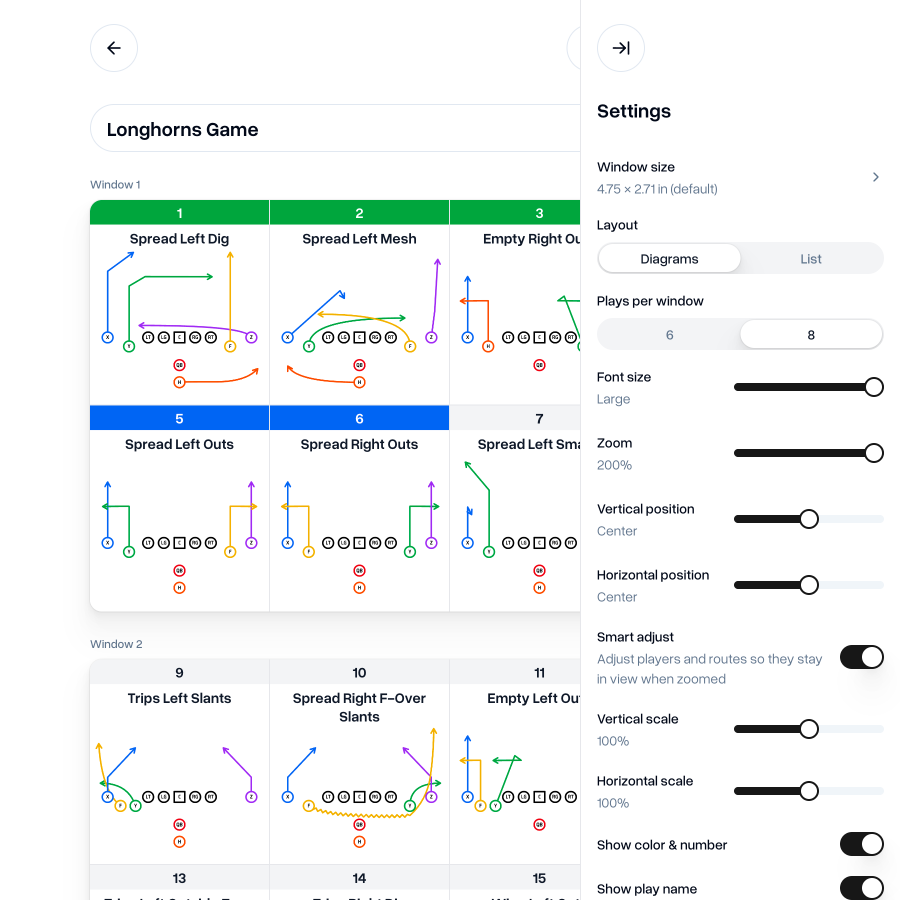
You have a ton of settings to help you show your plays just how you'd like to. With settings for zoom, position and scale, you can tweak things until they look just right. Combined with zoom, “Smart adjust” helps to ensure that your play stays within the visible area whilst maintaining the details of your diagram.
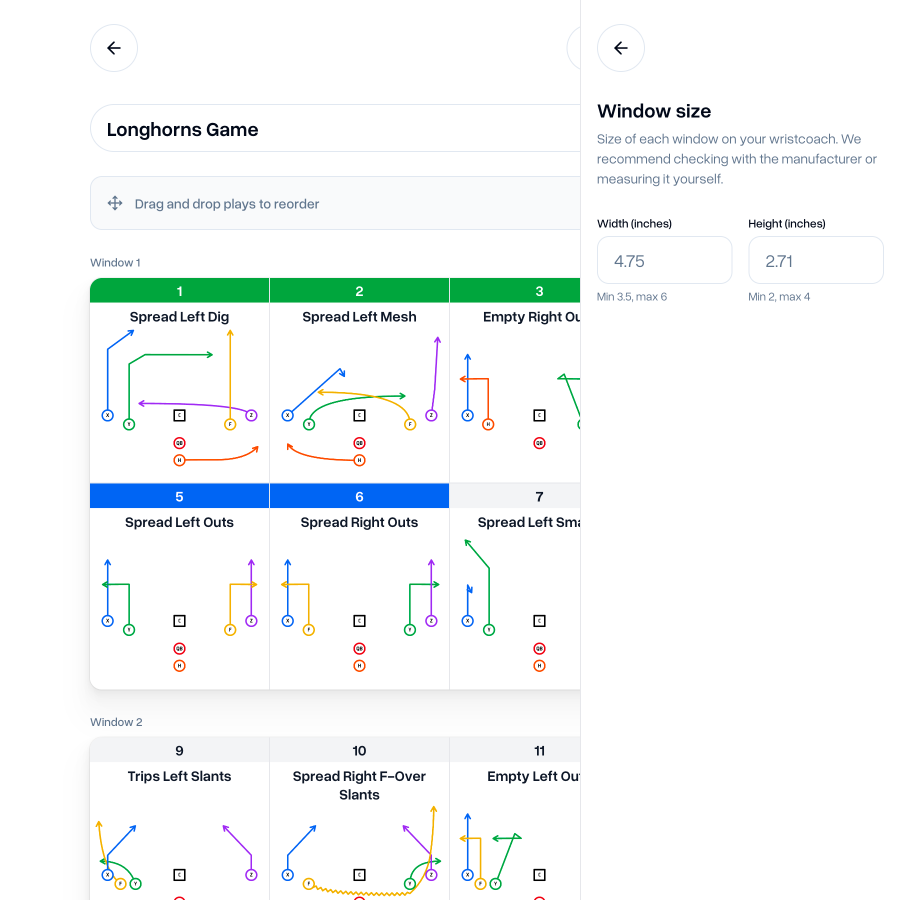
You can also set a custom window size to match the window on your physical wristcoach. Check the manufacturers details or measure the window yourself to get it just right.
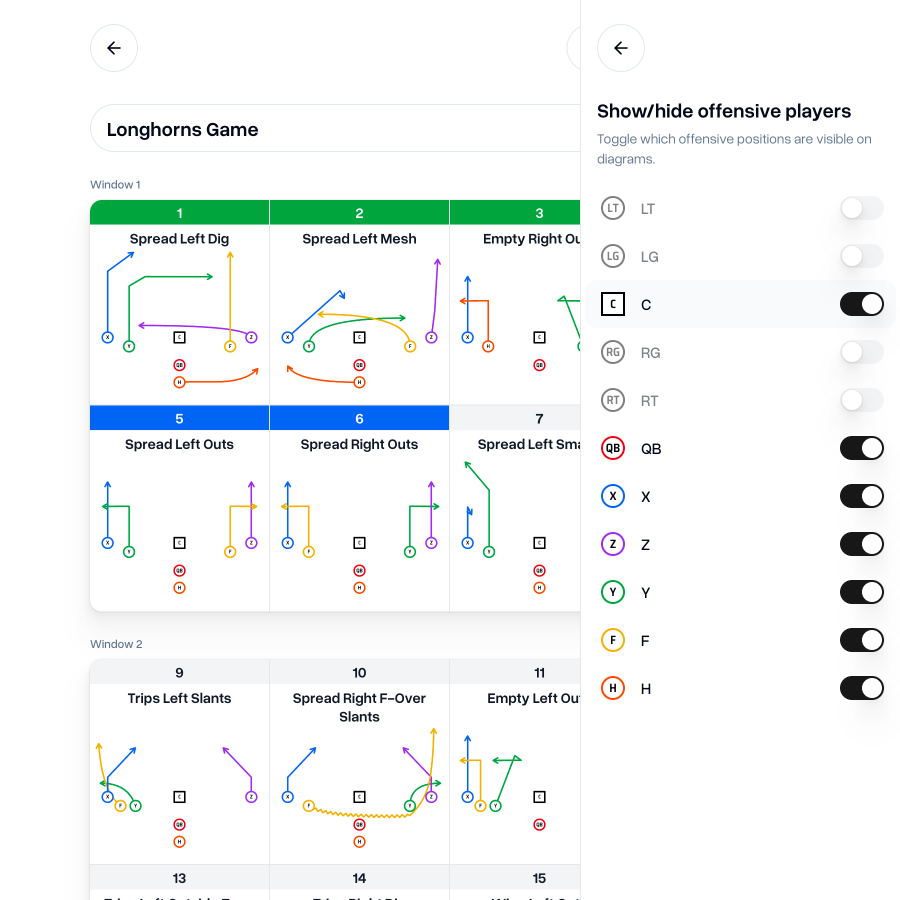
You can choose to show or hide things like play name, defense, and offensive players, to ensure you've got just the right amount of information for your players.
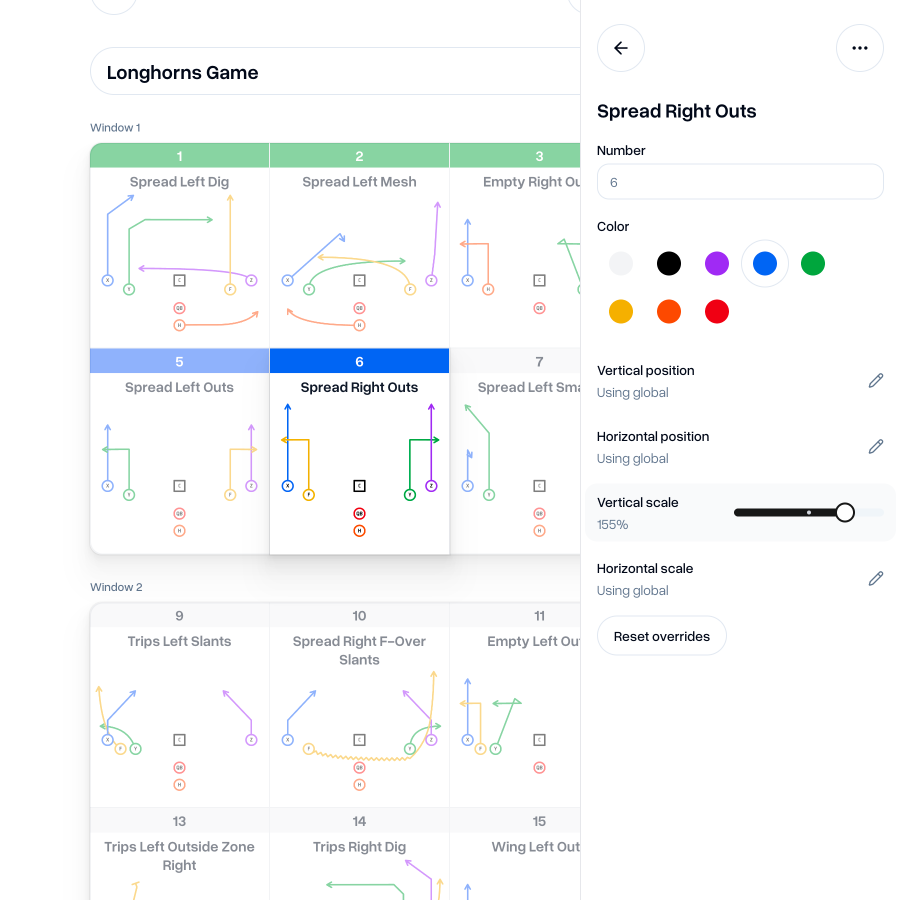
Selecting a play allows you to edit the number and color at the top of the play, but also lets you make tweaks to the sizing and positioning of that play to make sure all of your plays are as clear as possible.
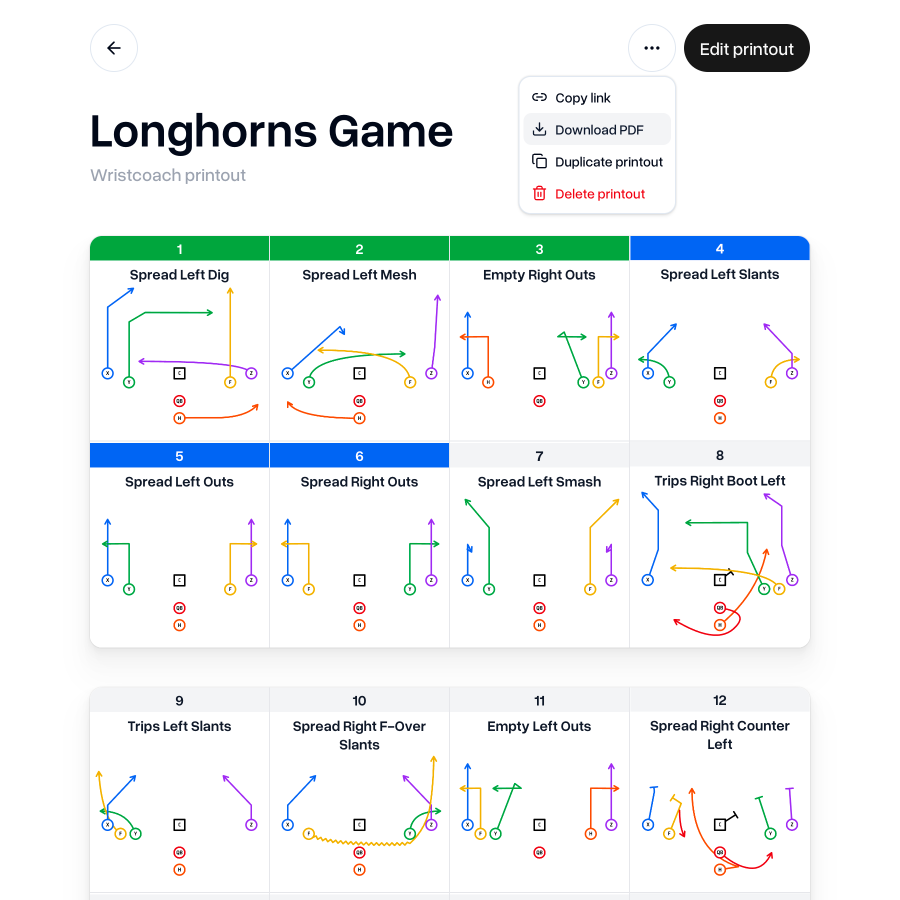
Once you're happy with your printout, save your changes by clicking the "Save" button in the top right. You can then download your printout as a PDF from the "View printout" page. Just open the "... " more option menu in the top right and select "Download PDF" to download your printout.
List layout
This update introduces a new wristcoach layout that was previously not available; List layout.
List layout doesn't include diagrams of plays but it does allow you to fit a lot of more plays on your printout.
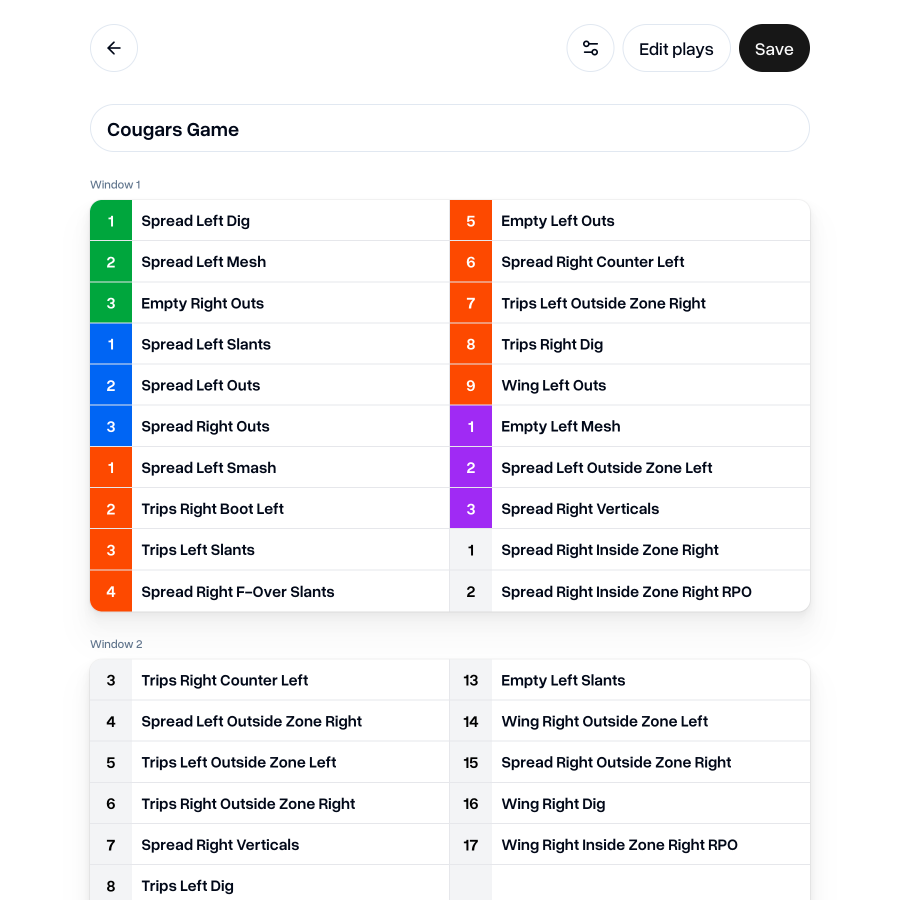
You'll have the ability to choose the number of plays you'd like on each window and to tweak the font size to find the right balance between clarity and space.
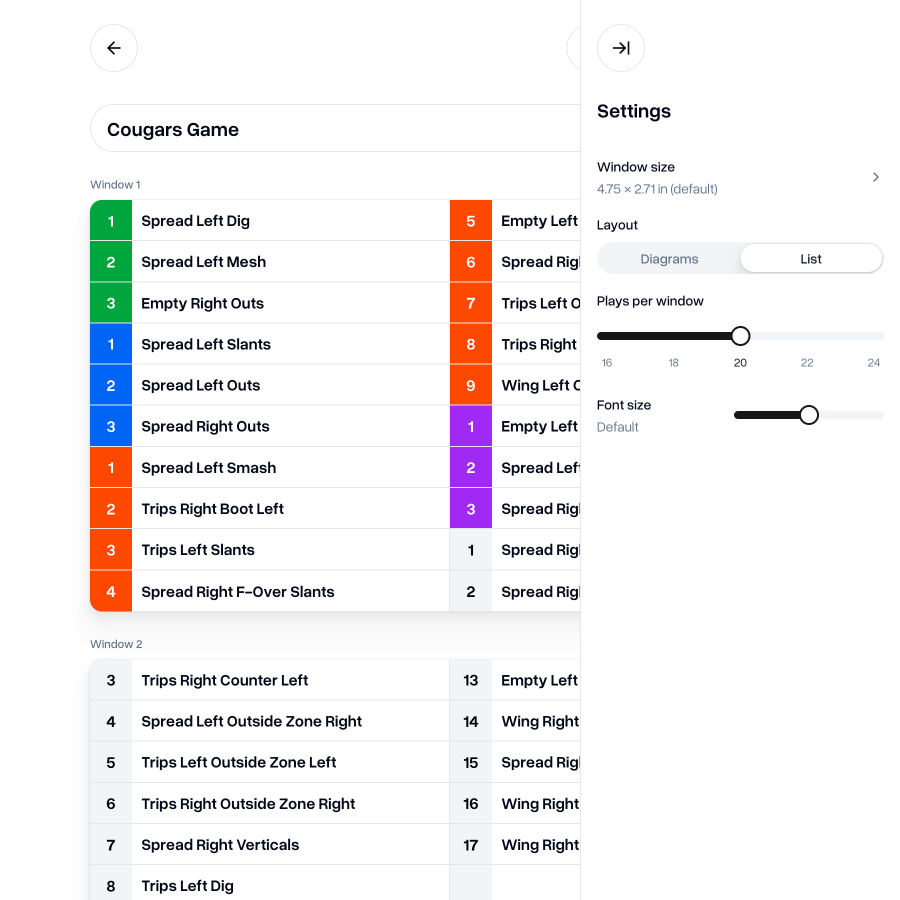
Like the diagram layout, you also have the ability to drag plays to reorder them just the way you'd like, either from the window preview or from the list of plays in the sidebar.
Go to PrintoutsAs always, I'm keen to hear your thoughts on this update. If you have any feedback, questions or ideas for improvements, don't hesitate to reach out at aaron@playdesignerpro.com or via the live chat on the site.
— Aaron, Founder of Play Designer Pro