Release notes: Mirroring formations and plays, spacing & alignment, position order, and playbook printing
Published: April 29, 2026
New spacing and alignment tools for formations
It can be frustrating and time consuming to get your players lined up just right in formations. Having the spacing between players slightly off can, at best, create an odd visual imbalance and, at worst, mislead players as to where they need to line up.
That’s why I’ve added a number of spacing and alignment tools to help you get things just right.
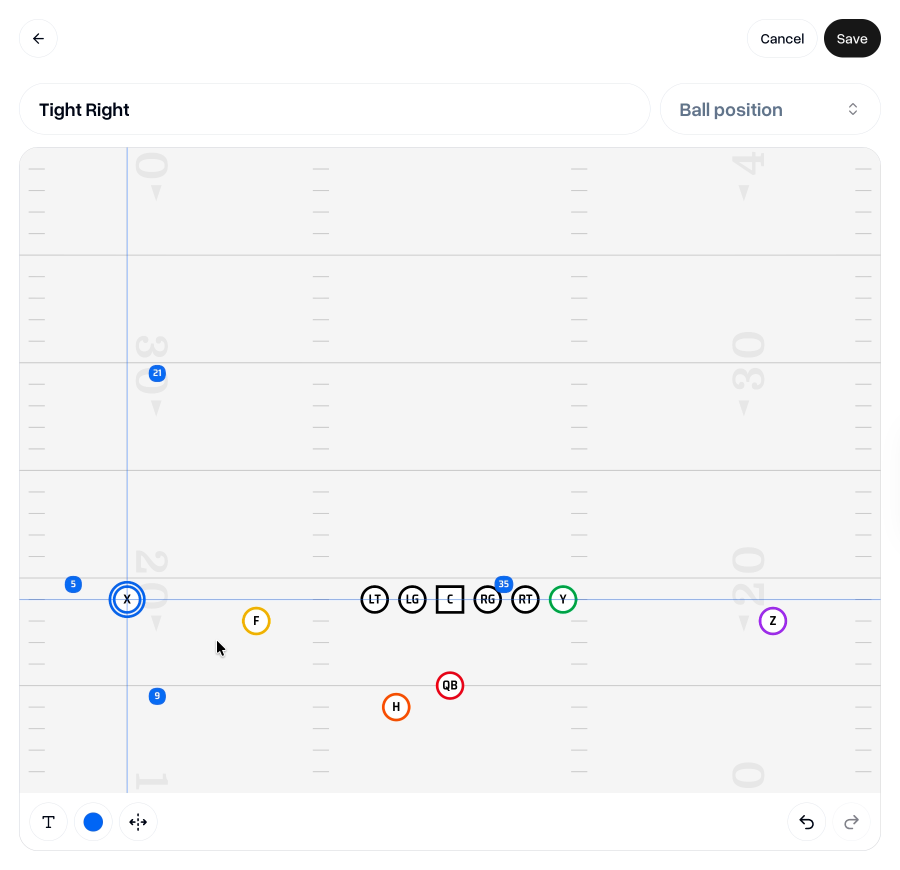
When dragging a player close to other players that are already evenly spaced, it will snap to position at a distance which matches the spacing of the other players.
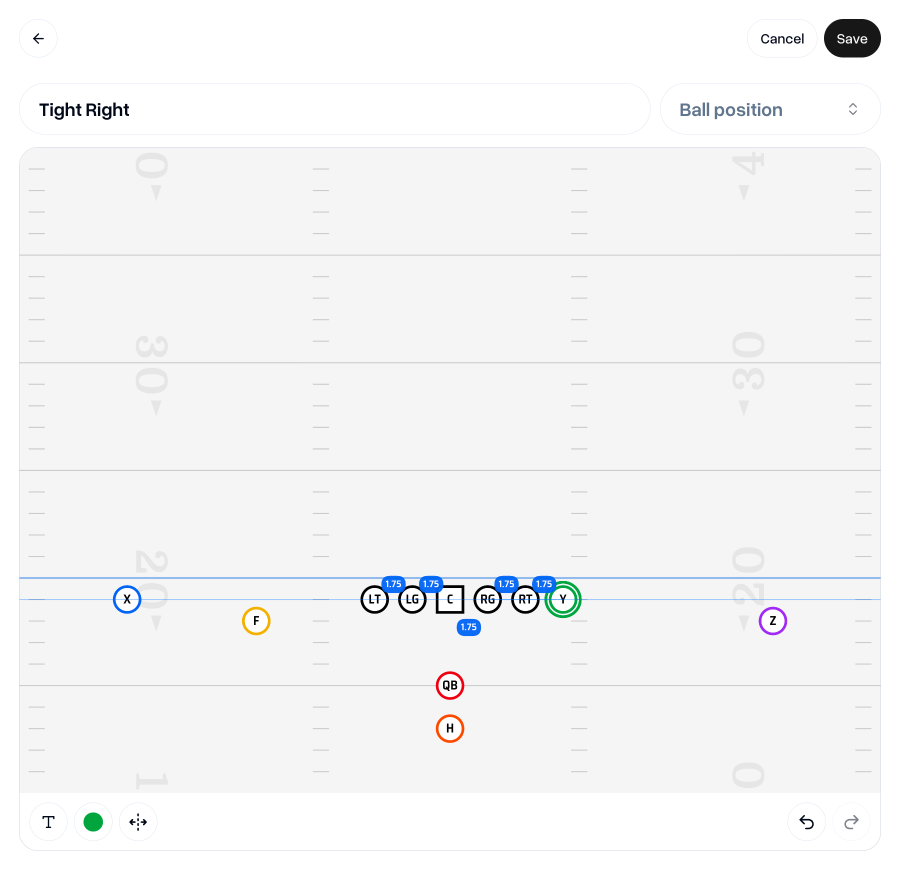
If you drag a player close to evenly between two other players, it will snap to position and show you the even distances between the players.
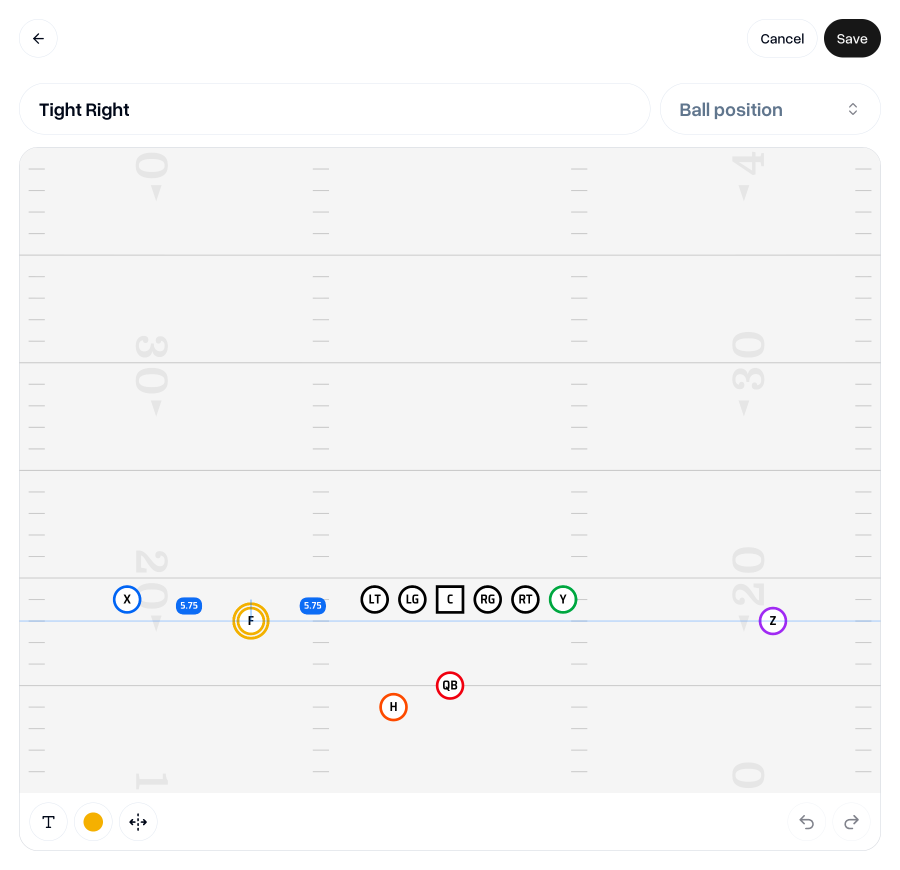
When you have more than one player selected (either by dragging to select multiple or holding the shift key and clicking multiple players), you now have extra alignment and spacing options in the toolbar.
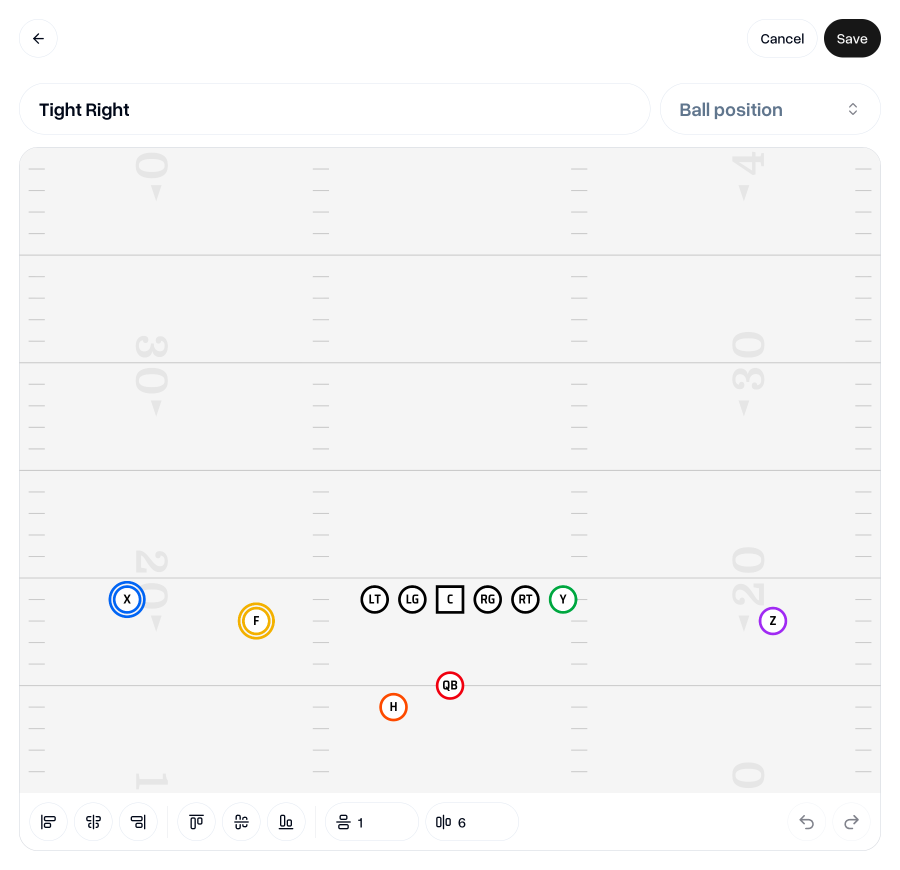
If you have 3 or more players selected you will see additional options to even out the vertical or horizontal spacing between players.
You also have an input field where you can see the exact distance between players and can even type a new value here to adjust it.
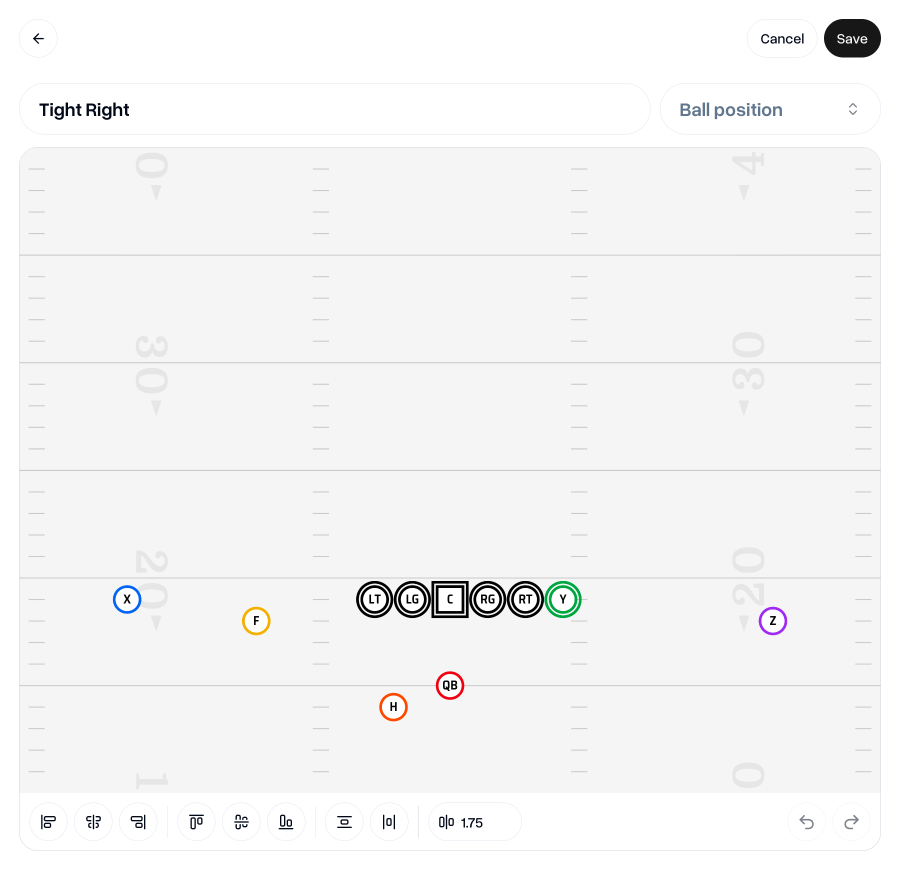
When you have players selected, you can also use the arrow keys to nudge player positions along the vertical and horizontal axis. Arrow keys nudge 1 yard at a time, but you can hold shift and then press the arrow keys to nudge by 0.1 for smaller adjustments.
You can also measure the distance from one player to another or from a player to the edge of the canvas. To do this, select a player and then hold the alt (Windows) or option (Mac/Linux) key and then hover the mouse over either another player or the canvas itself.
Mirroring plays and formations
We’re not finished on the theme of ensuring you can continue to scale your playbook whilst keeping things consistent and maintainable—in fact, we plan on doing a lot of work this year to support this.
Mirroring goes a long way to helping you create flipped versions of formations and plays, whilst preventing you from the increased workload of making changes to both versions.
To create mirrored plays, you’ll first need to either have a formation which is perfectly symmetrical or you need to create a mirrored version of a formation.
To create a mirrored formation, choose a formation you’d like to flip, and tap “Create mirrored version” in the menu.
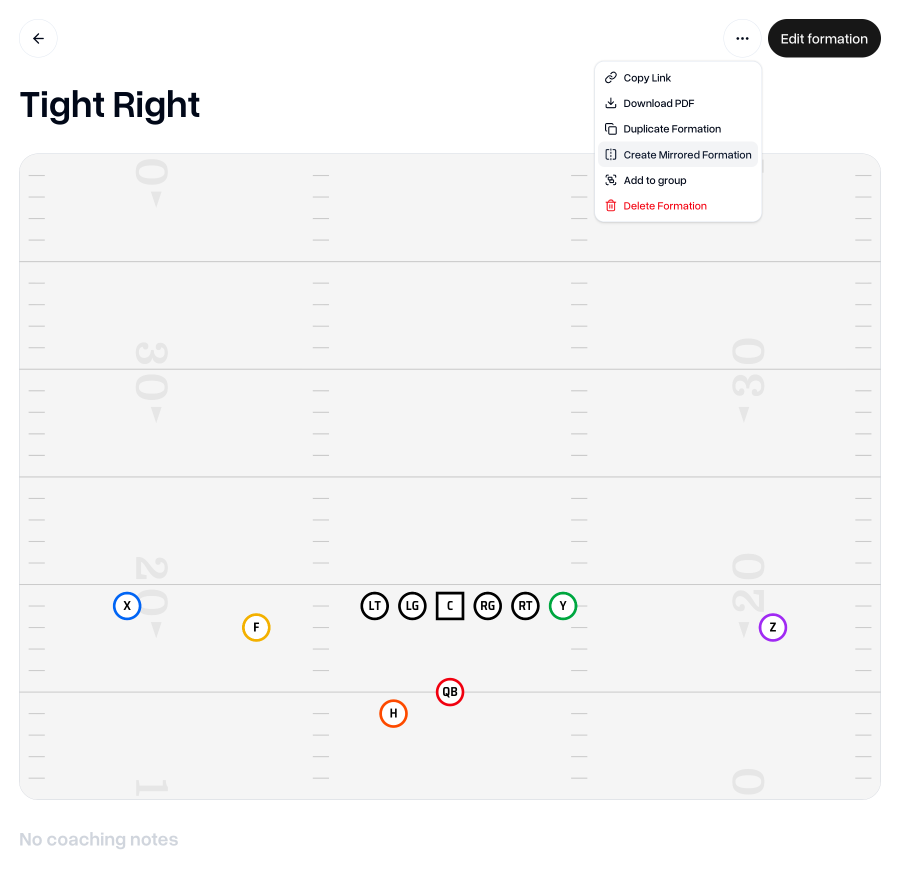
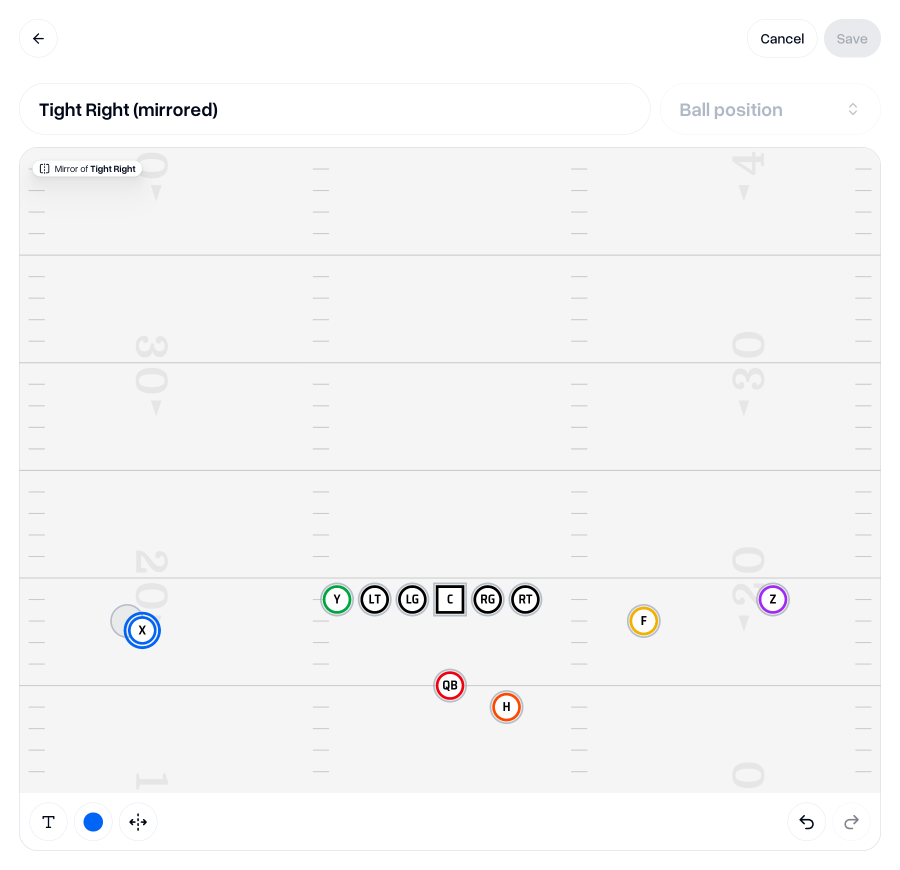
You will then be taken to a version of the formation editor where you can see the mirrored slots that you need to move players into.
This is so that you have a chance to mirror the formation as you intend. Perhaps you want to keep your X receiver on the left and your Z on the right? No problem, just move them to the correct slot and hit “Save”.
You will need to ensure that all slots are filled before you can save.
Once you’ve got a mirrored formation and you’ve used either the original or the mirrored version to create a play, you will then have the option on that play to “Create mirrored version”.
This will open a version of the play editor where the play diagram is automatically mirrored from the original play and cannot be edited. You can, however, edit the title, description and coaching notes of the play.
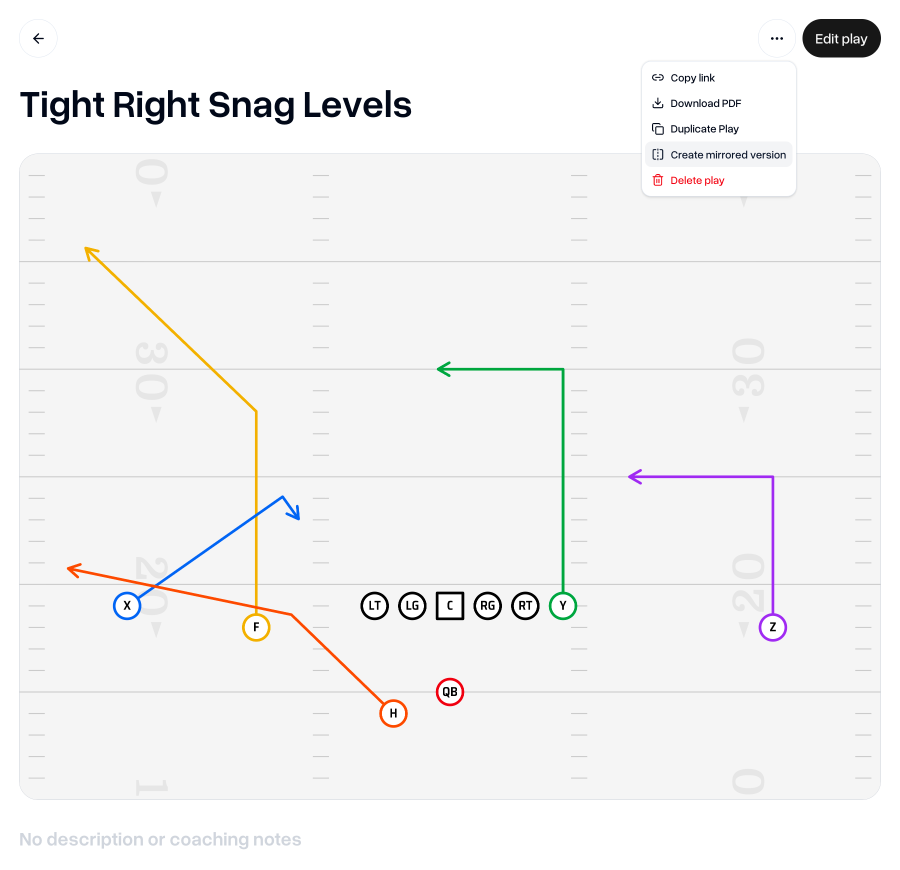
Hit “Save” and you have a mirrored version of the play.
Now when you make a change to the original play, the play diagram on the mirrored version will get automatically updated too.
Also, if you make a change to the original formation, the mirrored formation and both plays will get automatically updated at the same time.
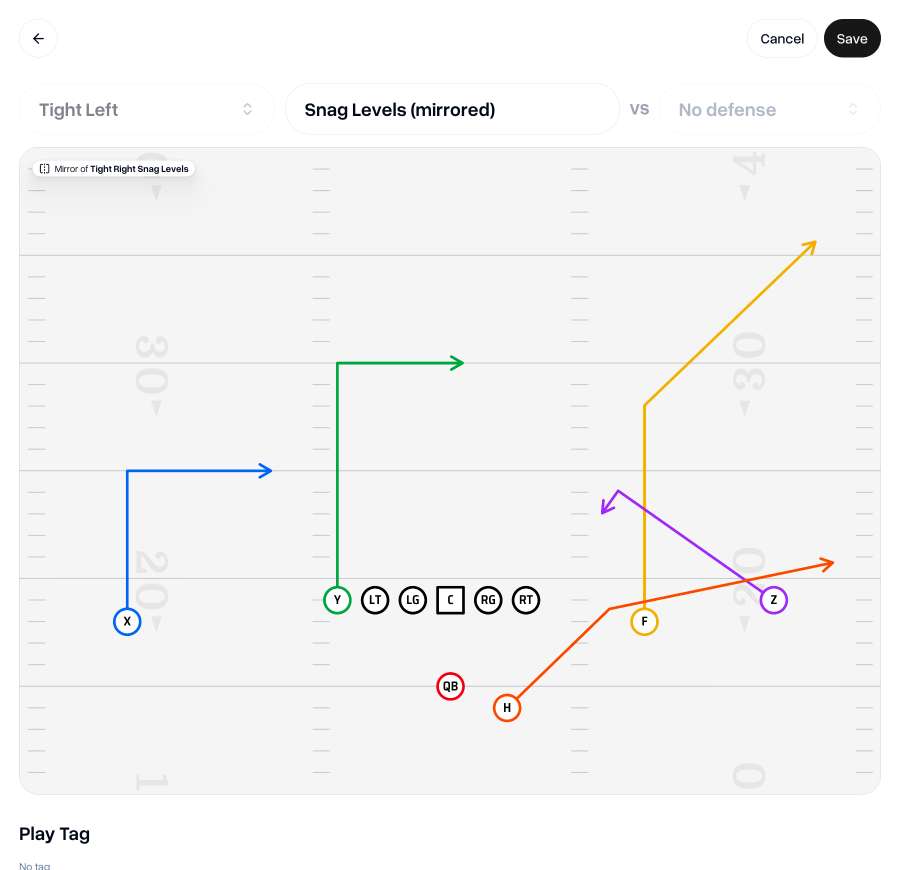
We hope this change will save you hours and a few pulled hairs that you might otherwise spend making small adjustments across multiple flipped versions of plays and formations.
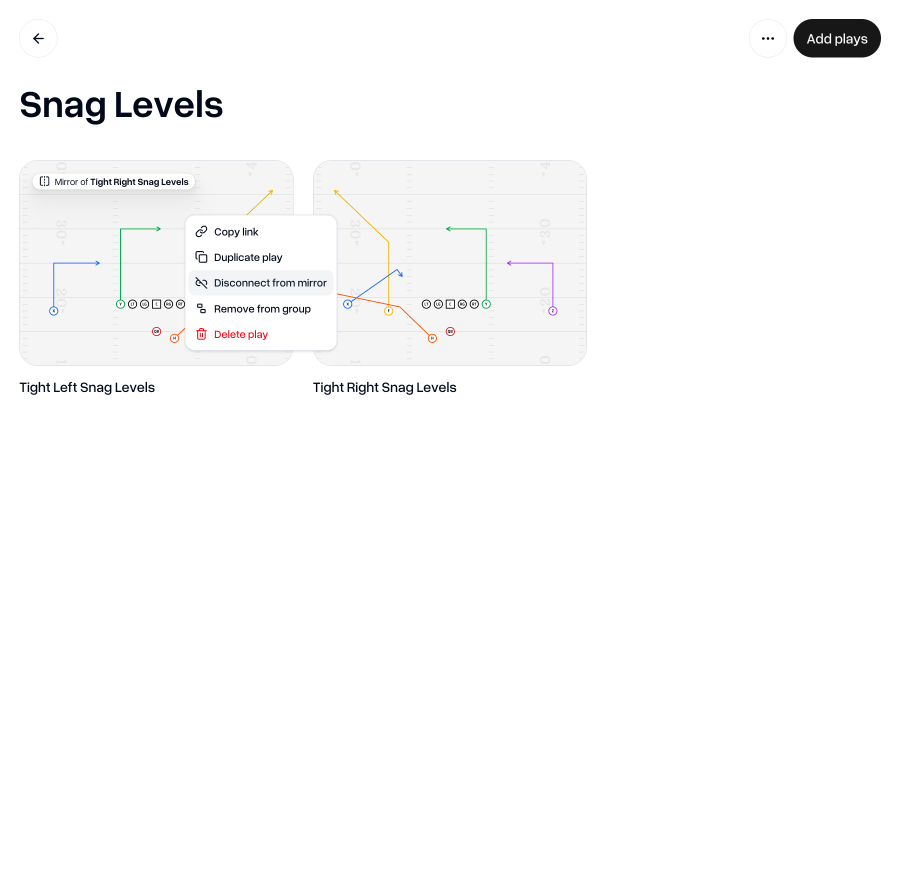
If you ever want to change a mirrored version back to a normal play so you can edit it independently, you can choose “Disconnect from mirror” on the formation or play that you’d like to edit. This will, however, mean that it no longer receives updates from the original formation/play.
Print entire playbook
Another change to bring to you is the added ability to print your whole playbook at once, without the need to create an install to do so.
Simply head to your Plays tab, open the “…” menu and select “Download playbook PDF”.
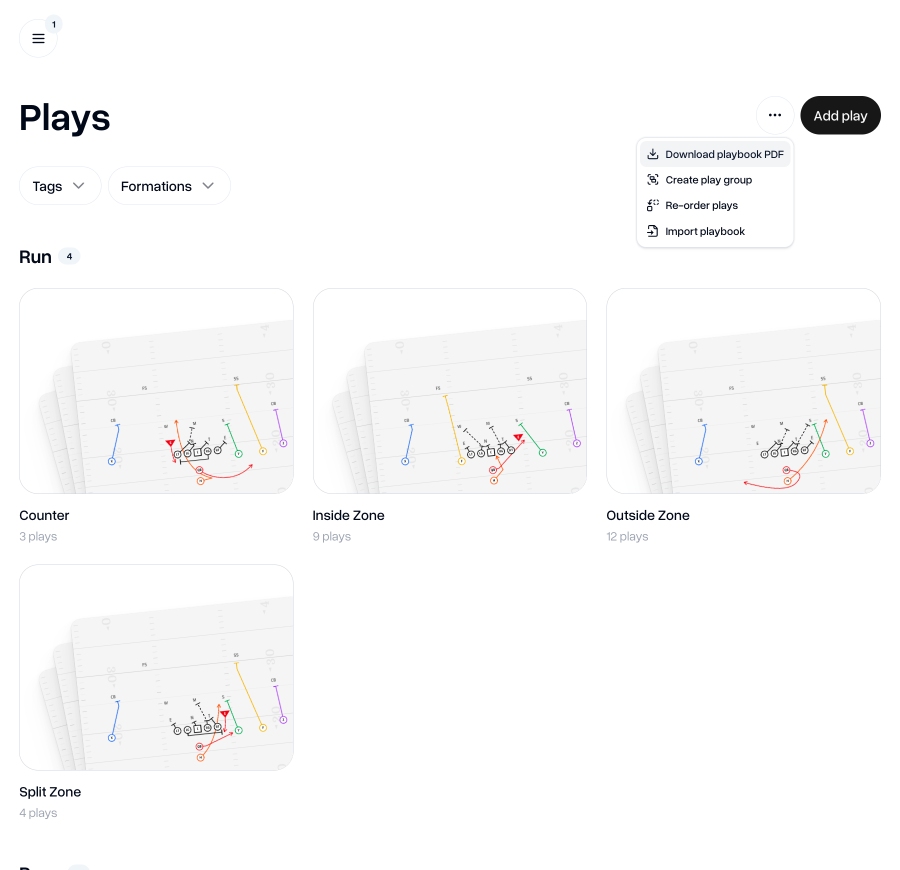
This will download a PDF of your entire playbook including formations, motions and plays. If you use tags on your plays, your plays will also be grouped by tag.
Re-order positions
If you’ve ever been annoyed that the positions weren’t in the order you’d like them to be when filling out coaching notes, then this is a handy little update for you.
You can now set the order that you’d like your positions to be in. This affects the order on both the Positions tab and in the coaching notes for plays and formations (yes, we’ve just added the ability to add Coaching Notes to formations too).
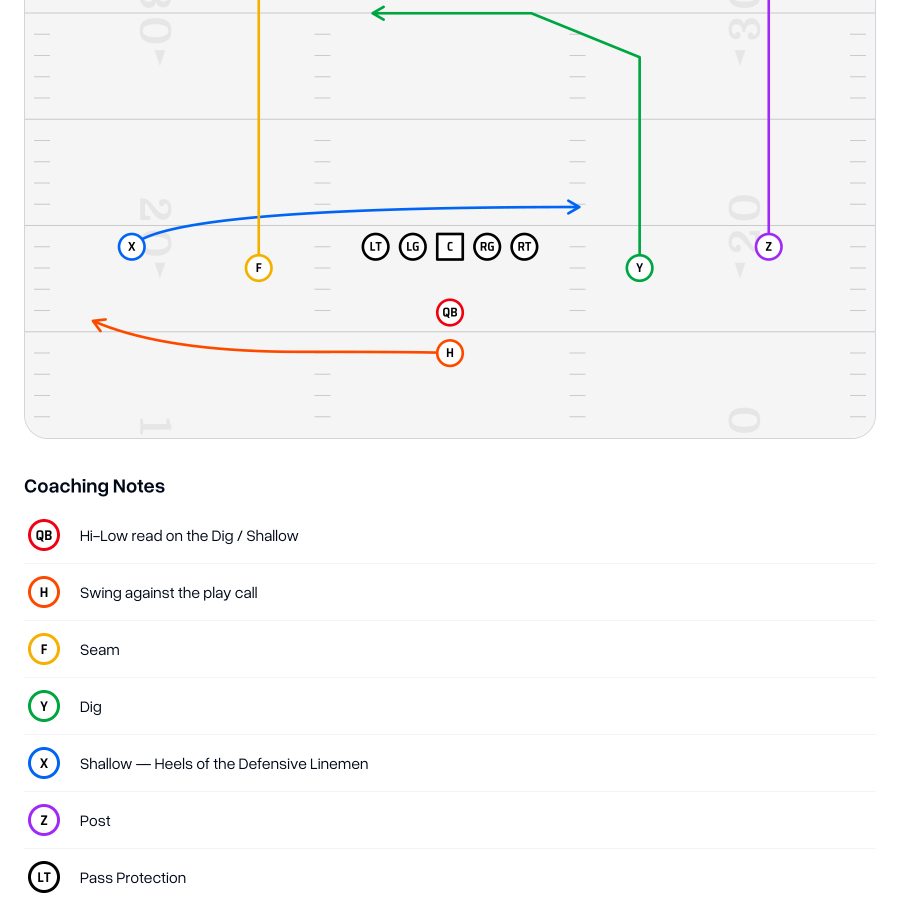
To set your preferred order of Positions, head to the Positions tab, click the “…” menu in the top right, then click “Re-order positions”.
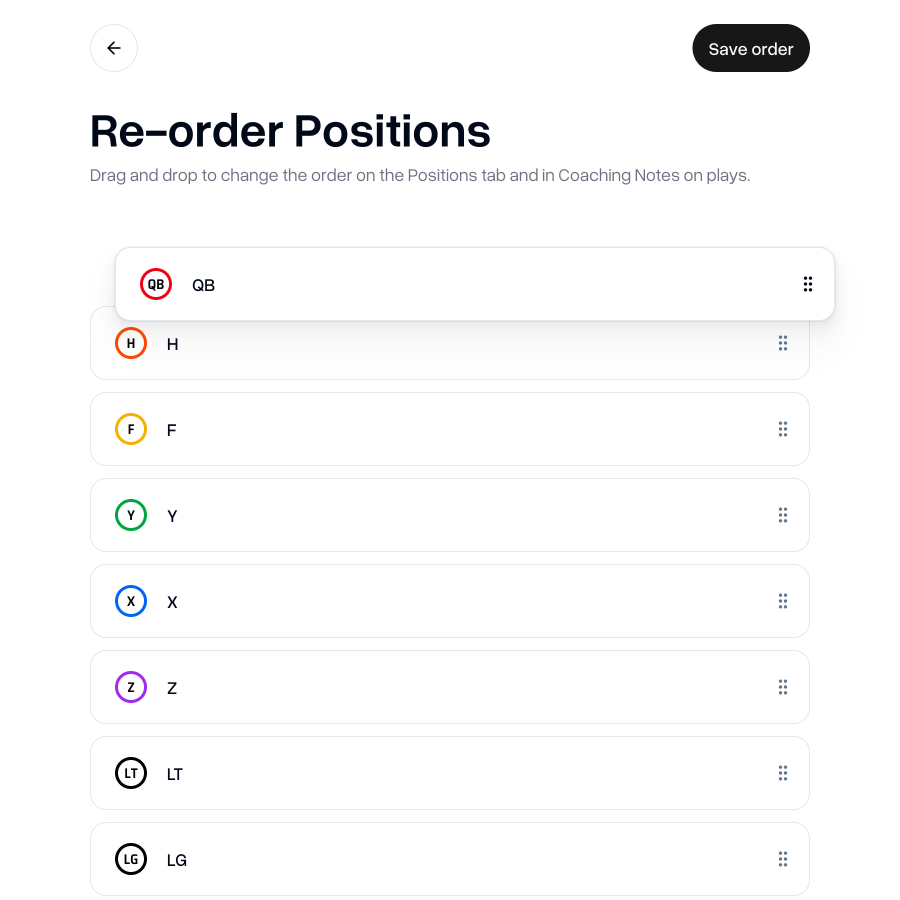
You’ll then have the opportunity to drag and drop the positions in the order that suits you. Hit “Save order” to confirm your changes and you’re all done.
Go to my teamAs always, I'm keen to hear your thoughts on this update. If you have any feedback, questions or ideas for improvements, don't hesitate to reach out at aaron@playdesignerpro.com or via the live chat on the site.
— Aaron, Founder of Play Designer Pro